Daftar Tes
Silakan menghubungi admin LaC terlebih dahulu melalui WhatsApp atau Email untuk mengkonfirmasi jadwal tes dan jenis akomodasi yang dibutuhkan.



EPrT® or English Proficiency Test is a tool to measure English language skills developed by the Telkom University Language Center.

About EPrT®
EPrT® or English Proficiency Test is a tool to measure English language proficiency which is developed by Telkom University Language Center.
The proficiency which will be tested is as follows:
● Listening Competence 50 questions in total
● Grammar Competence 40 questions in total
● Reading Competence 50 questions in total
The Duration of EPrT® Test: ± 2 ~ 3 hours
EPrT® Certificate Validity Period: 2 years
Range of EPrT® Scores: 310 – 677
EPrT® for Tel-U Students
● Level Promotion
● Final Project Defense Requirement
● International Mobility Program
● Fast Track Program
EPrT® Sample Questions
LaC Contact
Email: LaC@telkomuniversity.ac.id
WhatsApp: 0821-1735-3482 (Chat Only)
Whatsapp number provided above is specifically for EPrT® MABA 2025/2026. Do not contact the number for matters unrelated to EPrT® MABA 2025/2026.
● All participants of EPrT® MABA 2025/2026 must read the guide on the website provided below.
● Participants of the EPrT MABA 2025/2026 who do not meet the test requirements or fail to complete the test preparation as stated in the guidelines will not be allowed to take the test. Their EPrT MABA 2025/2026 test opportunity will be considered forfeited.
● EPrT® MABA 2025/2026 is an exclusive facility for Telkom University freshmen and is provided free of charge.
● EPrT® MABA 2025/2026 Jakarta, Surabaya, Purwokerto Campus and PJJ S1 Program is conducted online.
● All participants of EPrT® MABA 2025/2026 must join Zoom 30 minutes before the test starts.
1. Participant & Schedule
EPrT® MABA 2025/2026 is a test conducted exclusively for Telkom University freshmen of 2025/2026. EPrT® MABA 2025/2026 participants are all freshmen, except for international class, graduate school, and international student (WNA).
EPrT® MABA 2025/2026 for Telkom University Jakarta, Surabaya, and PJJ S1 campuses will be held online on October 13–24, 2025. Each participant can check their test schedule by entering their Student ID Number (NIM) on the Check Schedule page. Click the button below to view your schedule.
2. Test Device Requirements
EPrT MABA 2025/2026 participants who do not properly prepare the required test components, including hardware, software, test account, test environtment, internet connection will not be allowed to take the test, and their test session will be considered void.
1. Laptop
The test will be done on a laptop, not a tablet or a smartphone. Only use laptops with operating systems Windows 10 and above and Mac 10.13 (High Sierra) and above.
Windows 7, Windows 8, Macbook with MacOS, Linux, Android tablet, Android/iOS smartphone, and iPad are not suitable for the test.
2. Earphone/Headphone (Wired)
Make sure the earphone/headphone that you will be using is not wireless and working properly to the audio in the Listening section.
Participants are prohibited from using wireless/bluetooth earphone/headphone, laptop speaker, and external speaker during the test. Proctors have the rights to stop the test of participants who use the prohibited device previously mentioned.
3. Smartphone
The use of smartphone is for authenticating SSO (Single Sign-On) accounts with Microsoft Authenticator (MFA)
Make sure your smartphone can be used for SSO authentication using Microsoft Authenticator application. Use the smartphone when you log in into your SSO account.
To participate in the test, you need an authenticator application, Microsoft Authenticator, installed on your smartphone. This application will be used in verifying your ownership of the account which will be used when login to EPrT® test. You can download the application through Google Play Store or App Store.
Make sure to do a login test with your SSO account. If any problems occur when logging in, please consult Helpdesk PuTI. You can follow the installation guidance and Microsoft Authenticator activation from the link provided below:
Zoom application will only be accessed through smartphone not PC/laptop. Make sure you have already downloaded and updated Zoom on your smartphone. Make sure the camera is always turned on during the test. Make sure the front-side camera is working properly.
Step-by-step Installing Zoom on the Smartphone Application
1. Click on the icon Google Play Store for Android or Apple App Store for iOS.
2. Click Search.
3. Type Zoom on the search bar, and select Zoom Workplace.
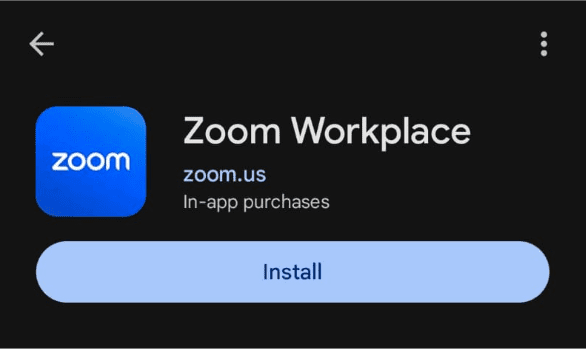
4. Click Install and wait until the installation process is completed.
5. After Zoom is installed, click open.
6. Select Sign in and use your active e-mail.
EPrT® test participants are required to install the Safe Exam Browser (SEB) application version 3.7.1. Please download and install the application on the device you will use for the test. The SEB 3.7.1 application MUST be downloaded via the button below:
DO NOT DOWNLOAD SEB FROM OTHER LINKS
Notes: MAKE SURE TO ONLY DOWNLOAD FROM THE PROVIDED LINK. OTHER SEB VERSIONS ARE UNUSABLE FOR THE TEST.
——————————————————–
Step-by-step Installing SEB Application
a. Download Safe Exam Browser version 3.7.1.
SEB Application is named SEB_3.7.1.704_SetupBundle.exe and the size is approximately 282MB. Make sure you have stable internet connection to download the application.
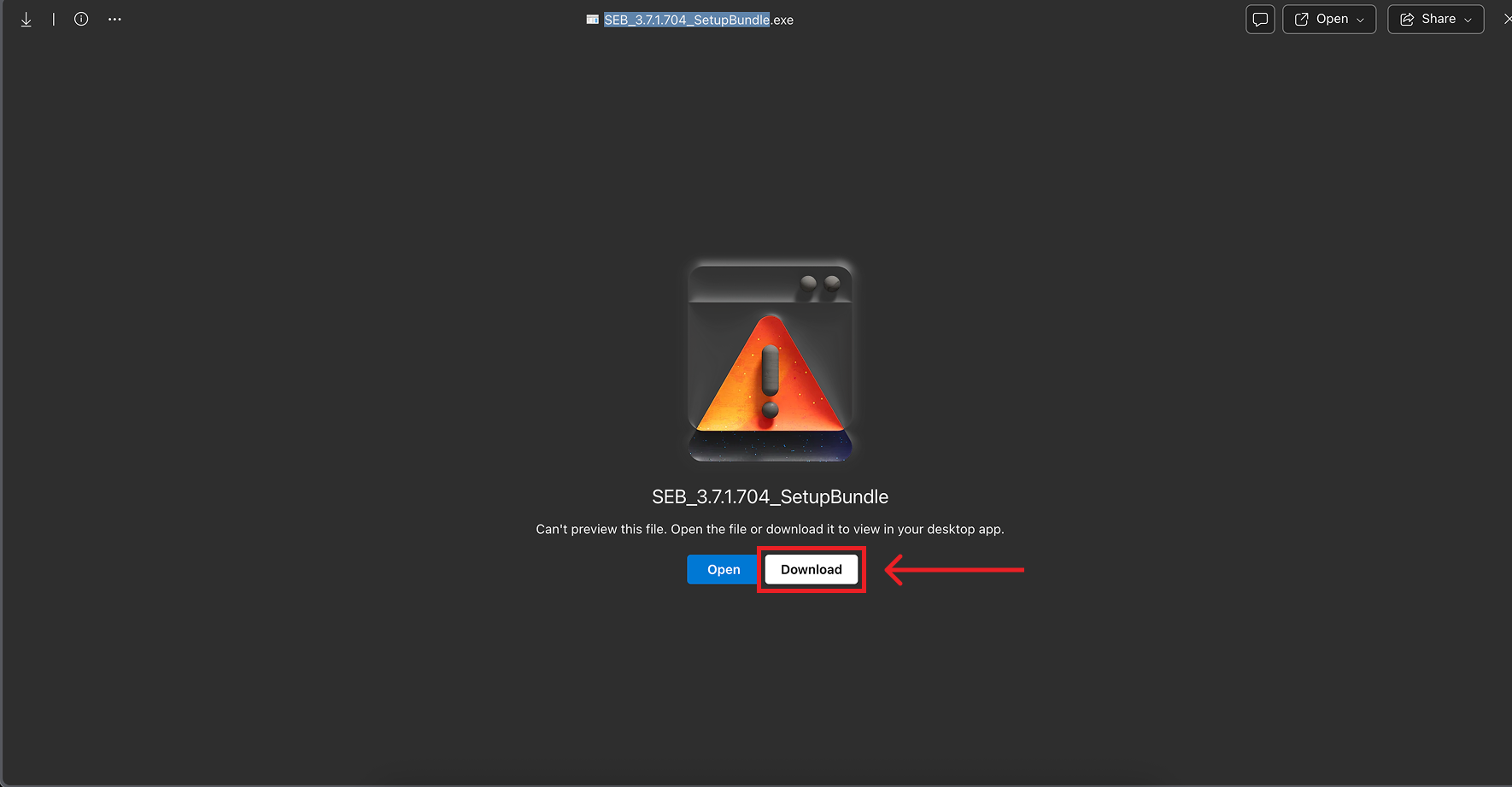
b. Open File Explorer and navigate to the folder where you put your SEB application.
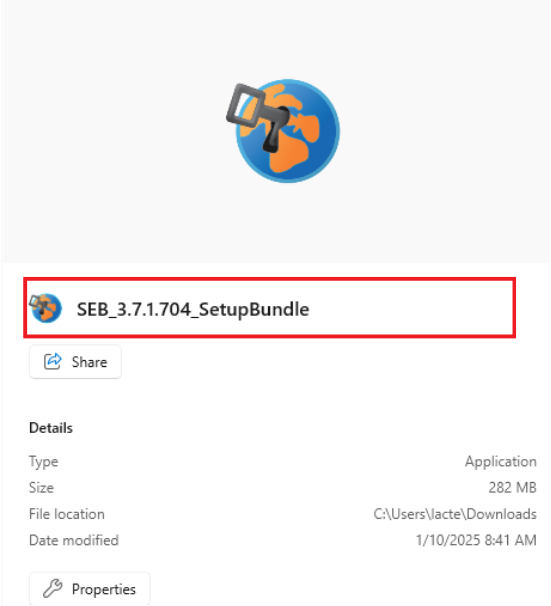
c. Double-click SEB file installer to start the installation process. Make sure your internet connection is stable during this process. Checklist “I agree to the license terms and conditions”. and click Install.
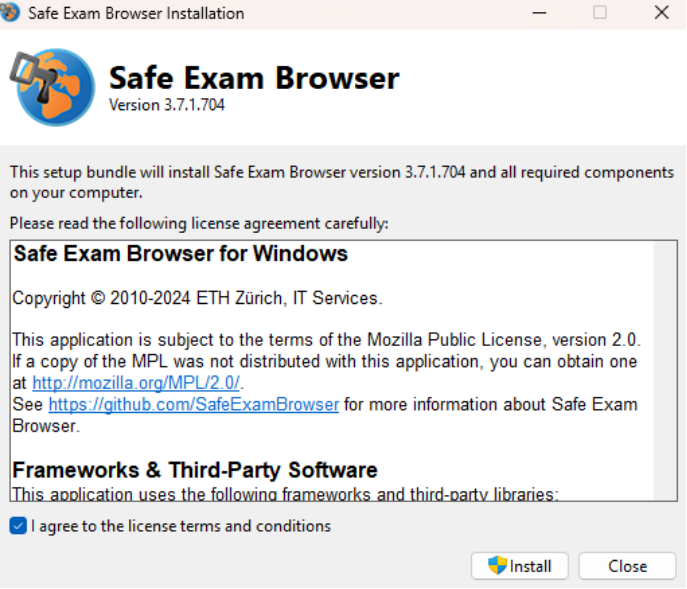
d. After finished installing, click close.
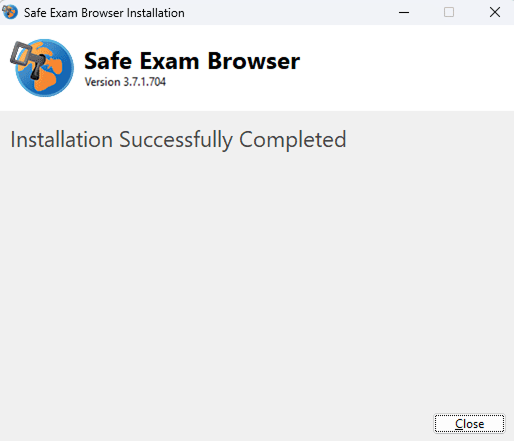
e. SEB installation process is completed. You don’t need to open or do anything on SEB applications, except for doing simulation and test (follow the instruction from simulation and test guidance).
EPrT® test participants are required to install the Safe Exam Browser (SEB) application version 3.3.3. Please download and install the application on the device you will use for the test. The SEB 3.3.3 application MUST be downloaded via the button below:
DO NOT DOWNLOAD SEB FROM OTHER LINKS
Notes: MAKE SURE TO ONLY DOWNLOAD FROM THE PROVIDED LINK. OTHER SEB VERSIONS ARE UNUSABLE FOR THE TEST.
——————————————————–
Step-by-step of Installing SEB Application
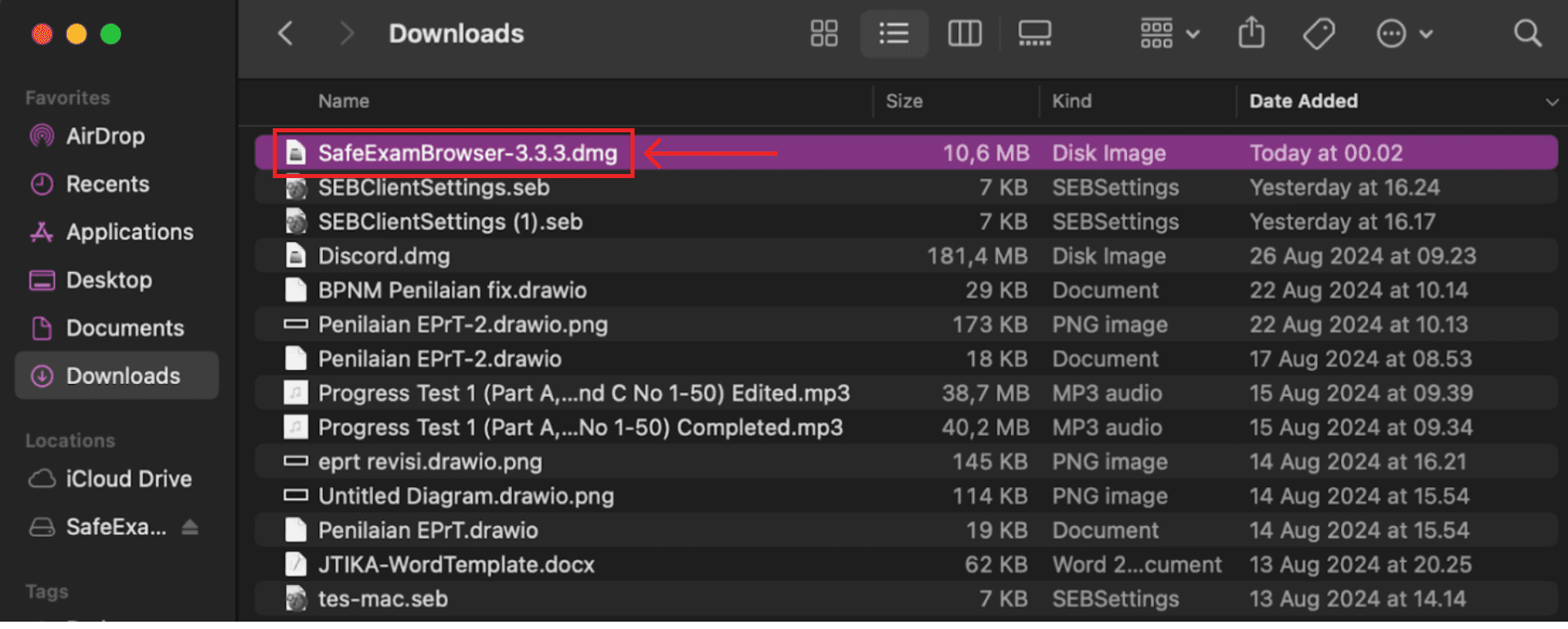
a. Download Safe Exam Browser version 3.3.3.
SEB Application is named SafeExamBrowser-3.3.3.dmg and the size is approximately 10MB. Make sure you have stable internet connection to download the application.
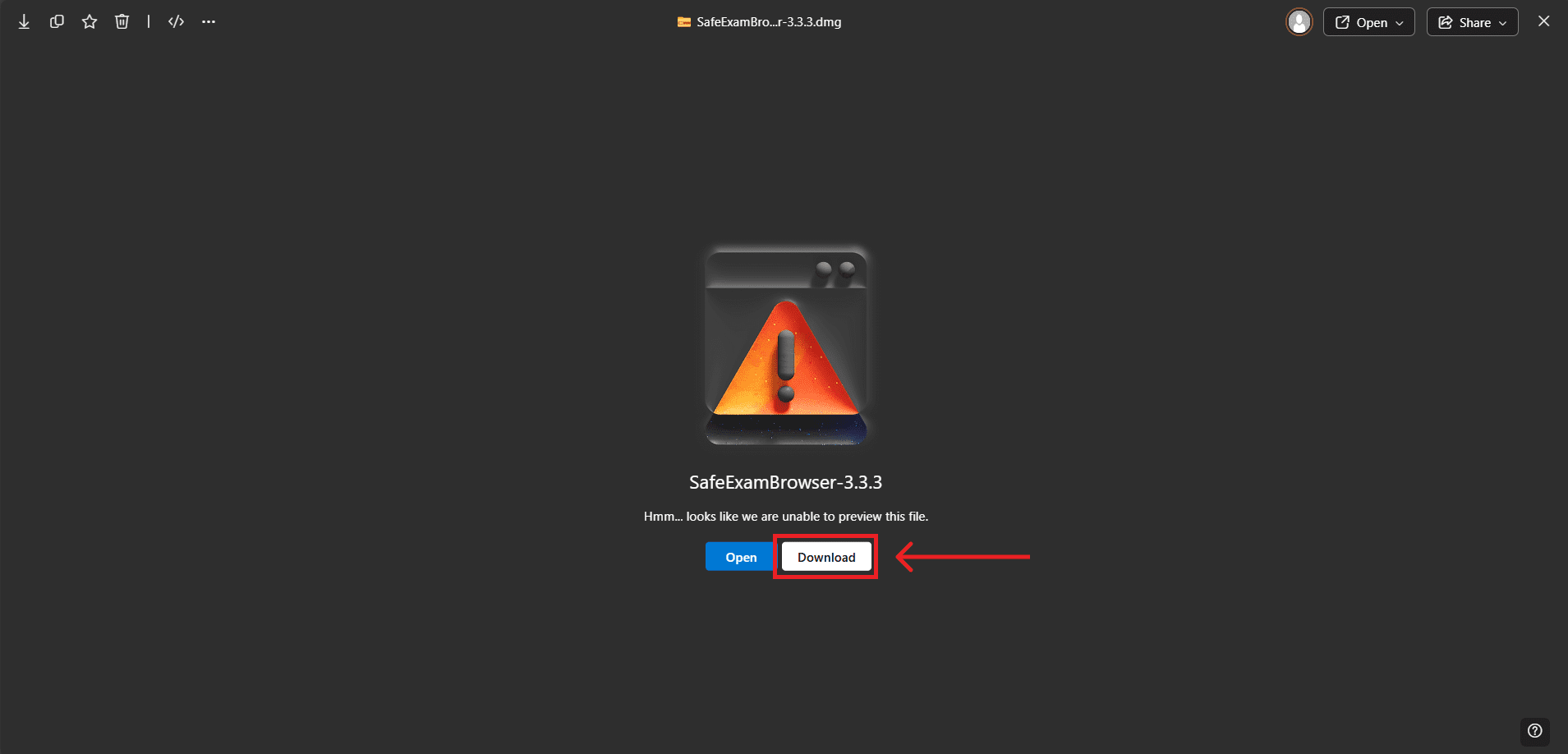
b. Open the downloaded Safe Exam Browser (SEB) application.
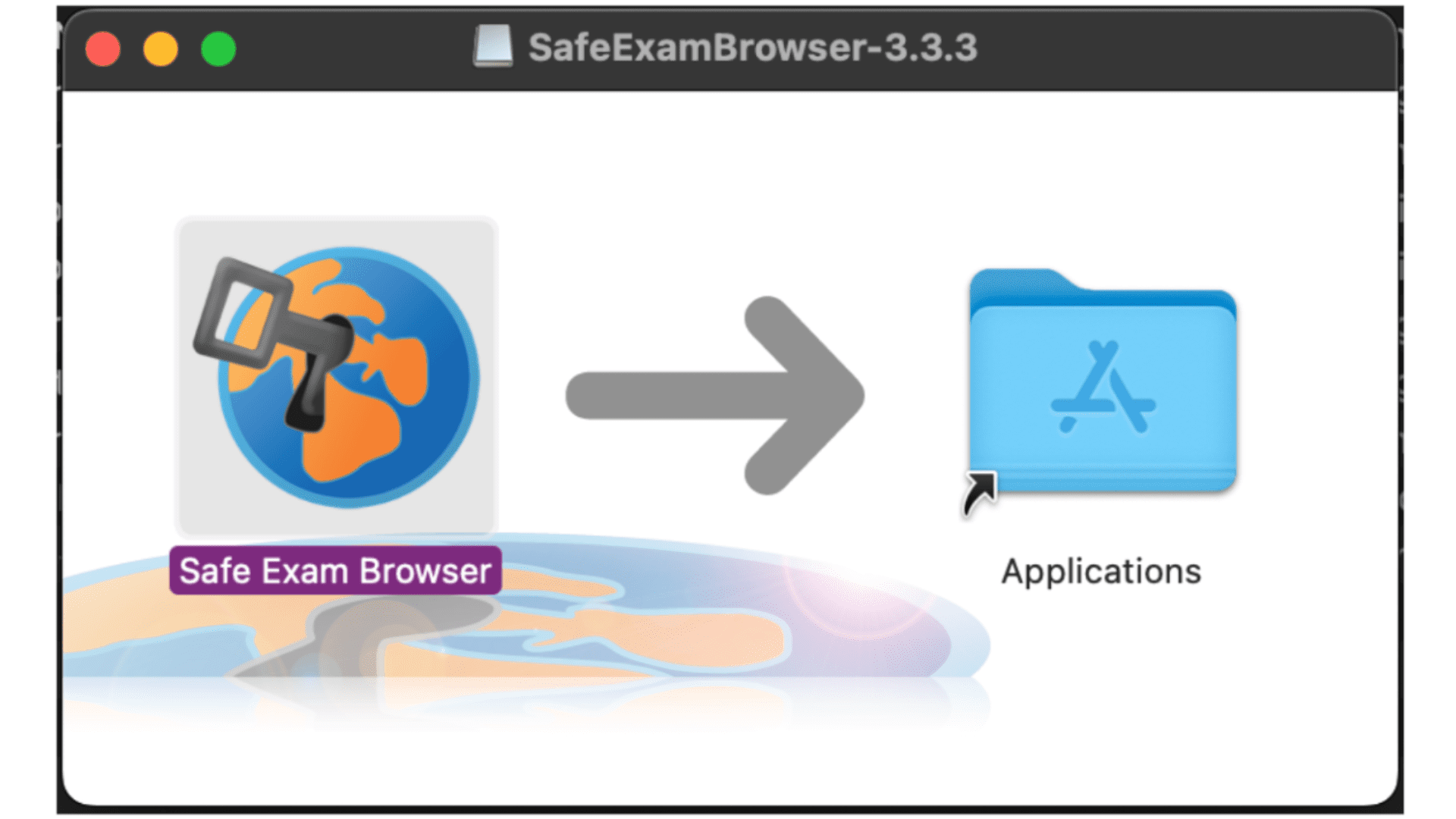
c. Click the dmg file to start the installation process, then drag the Safe Exam Browser icon to Applications.
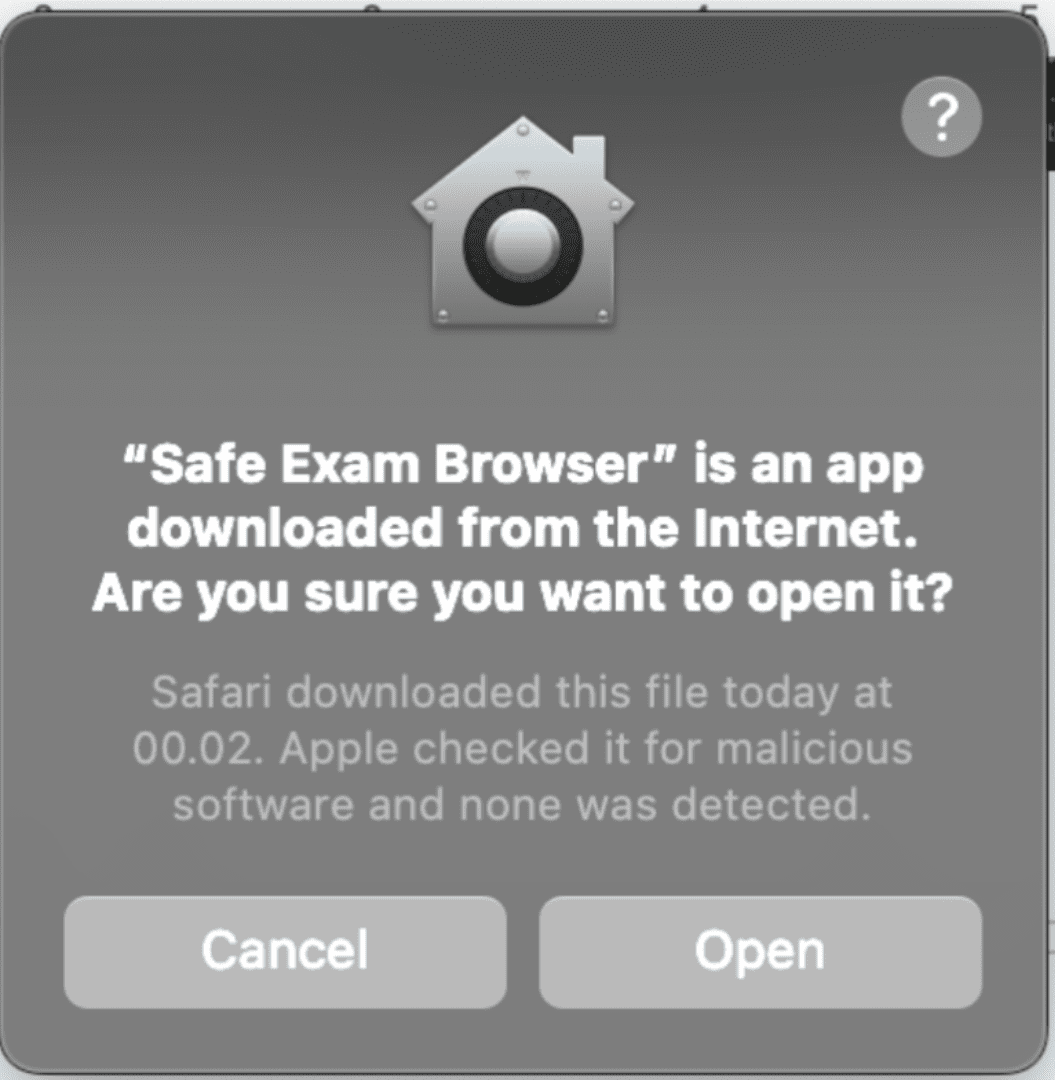
d. Open the installed Safe Exam Browser application. When the notification “Safe Exam Browser” is an app downloaded from the Internet. Are you sure you want to open it? appears, select Open to launch the application.
e. After selecting Open, you will be directed to the Safe Exam Browser Page, indicating that the Safe Exam Browser has been successfully installed
f. The installation process of SEB is complete. After this, you do not need to open or do anything with the SEB application, except for doing simulation and getting familiar with the test (follow the instructions in the simulation and test guidelines).
EPrT® will be conducted on Tel-U’s online learning platform (onlinelearning.telkomuniversity.ac.id). Ensure your SSO/iGracias account is active.
Online learning usernames are as follows:
● Students: (SSO username)@student.telkomuniversity.ac.id
● TPA/Lecturers: (SSO username)@telkomuniversity.ac.id
The online learning password is the same as your SSO/iGracias password.
If you encounter any issues with your SSO account, please contact the PuTI Helpdesk via WhatsApp at +62 823-1994-9941.
1. Make sure you do the test in a private space.
2. Make sure doors and windows are closed (windows are veiled with curtain or cloth).
3. Make sure you are in a well-lit room and have prepared a table to put on the laptop and a chair during the test.
4. Make sure there is no other people around and/or noise in your test room.
5. Make sure there is no noise that may distract you during listening.
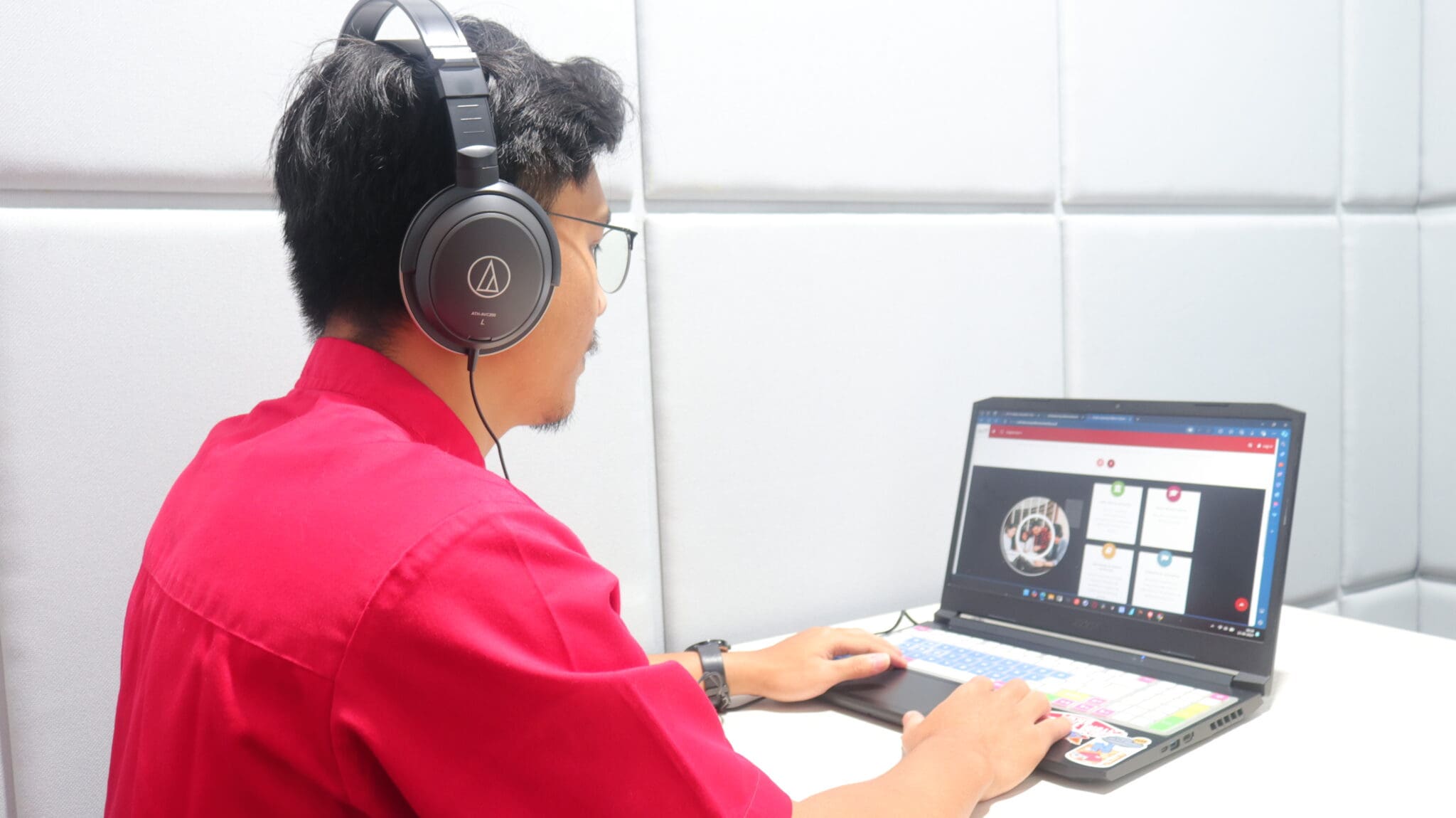
6. Make sure there is no other device around except smartphone for Zoom and Pc/laptop for test.
7. Place your laptop or PC monitor on the table facing you.
Here is the example of smartphone camera during Zoom:
Selama pengerjaan tes, PC/laptop dan smartphone harus selalu terhubung ke Internet yang stabil. Upayakan memiliki koneksi stabil minimal 2 Mbps. Jika Anda menggunakan paket data, persiapkan sebesar total 5GB untuk pelaksanaan tes.
Cek kecepatan koneksi Anda melalui website fast.com
3. Preparation for Test
Participants of the EPrT MABA 2025/2026 who fail to prepare before the test will not be permitted to take it. Their EPrT MABA 2025/2026 test opportunity will be considered forfeited.
The test will be conducted through Online Learning Tel-U which can be accessed using SSO/iGracias account. Therefore, it is mandatory to activate an SSO/iGracias account before taking the test to get an Online Learning Tel-U Account. After your account is activated, your Online Learning account will be automatically activated. For freshmen who have not activated their account, please activate it as soon as possible.
Information regarding SSO/iGracias activation can be seen on link provided as follows:
The EPrT® test will be done through Online Learning Tel-U onlinelearning.telkomuniversity.ac.id. Make sure your online learning (SSO/iGracias) is already activated and successfully log in (please try to log in to your online learning account and make sure it is successful). If any problems occur when logging in, please consult Helpdesk PuTI.
Online Learning Tel-U Account is a combination of username SSO/iGracias + @student.telkomuniversity.ac.id which can be seen below:
● Username SSO/Igracias: jonathanwibowo
● Online Learning Account: jonathanwibowo@student.telkomuniversity.ac.id
However, the password will not be changed. Online Learning Tel-U Password is the same as an SSO/iGracias account.
Step-by-step in Log in into Online Learning Tel-U:
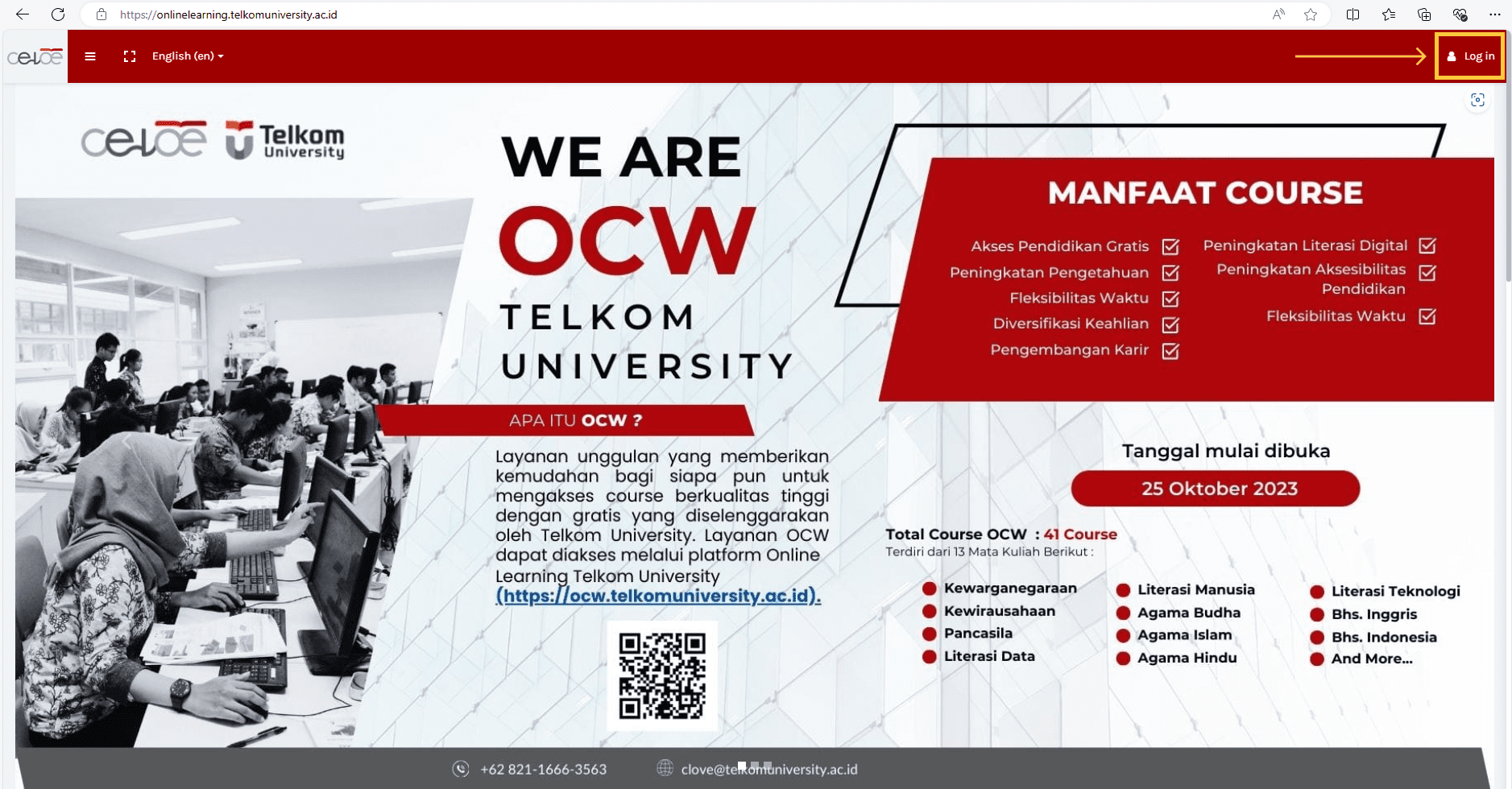
1. Access link onlinelearning.telkomuniversity.ac.id
2. Click Login which is on the top corner of the screen.
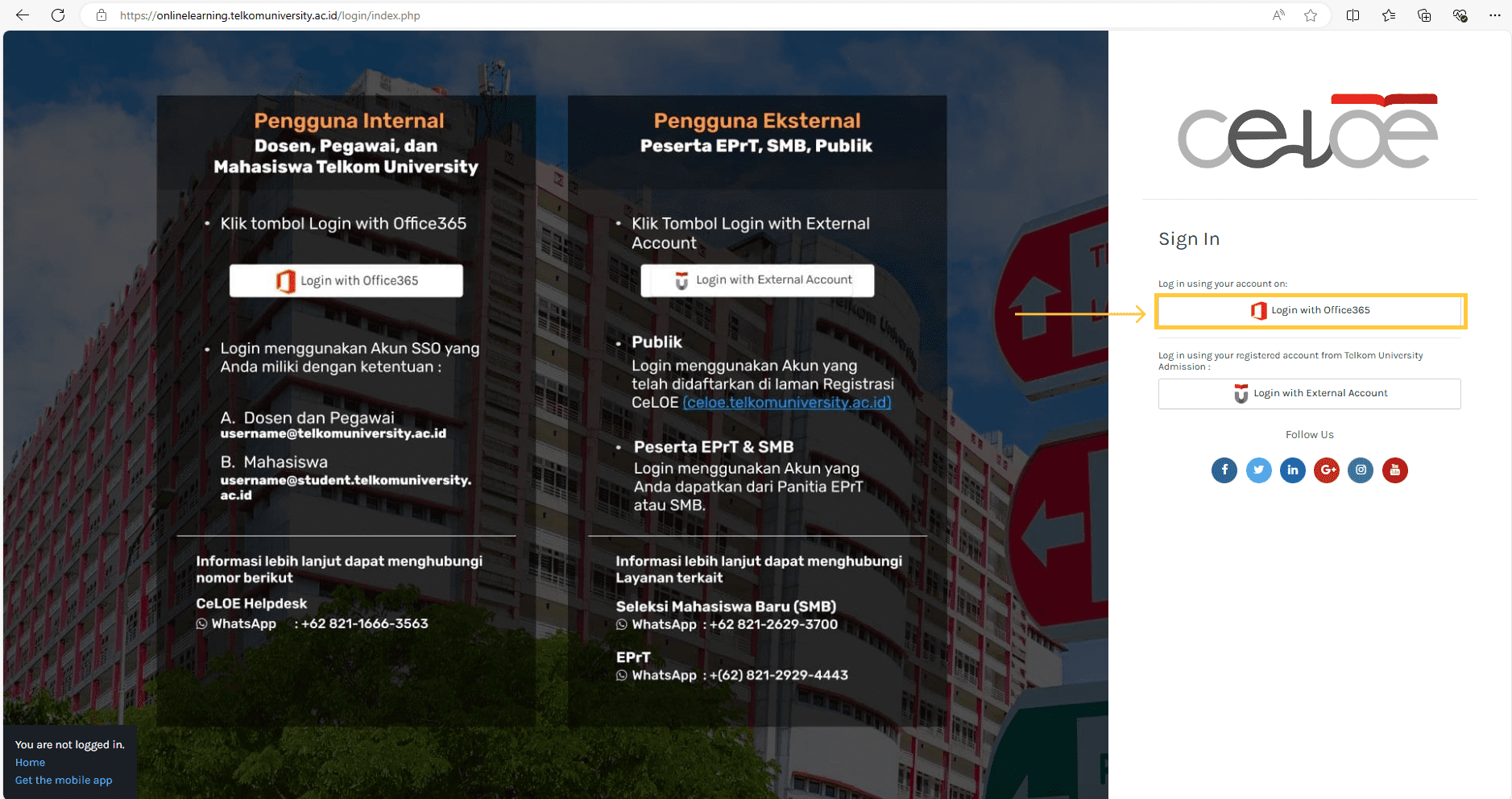
3. Click Login with Office 365
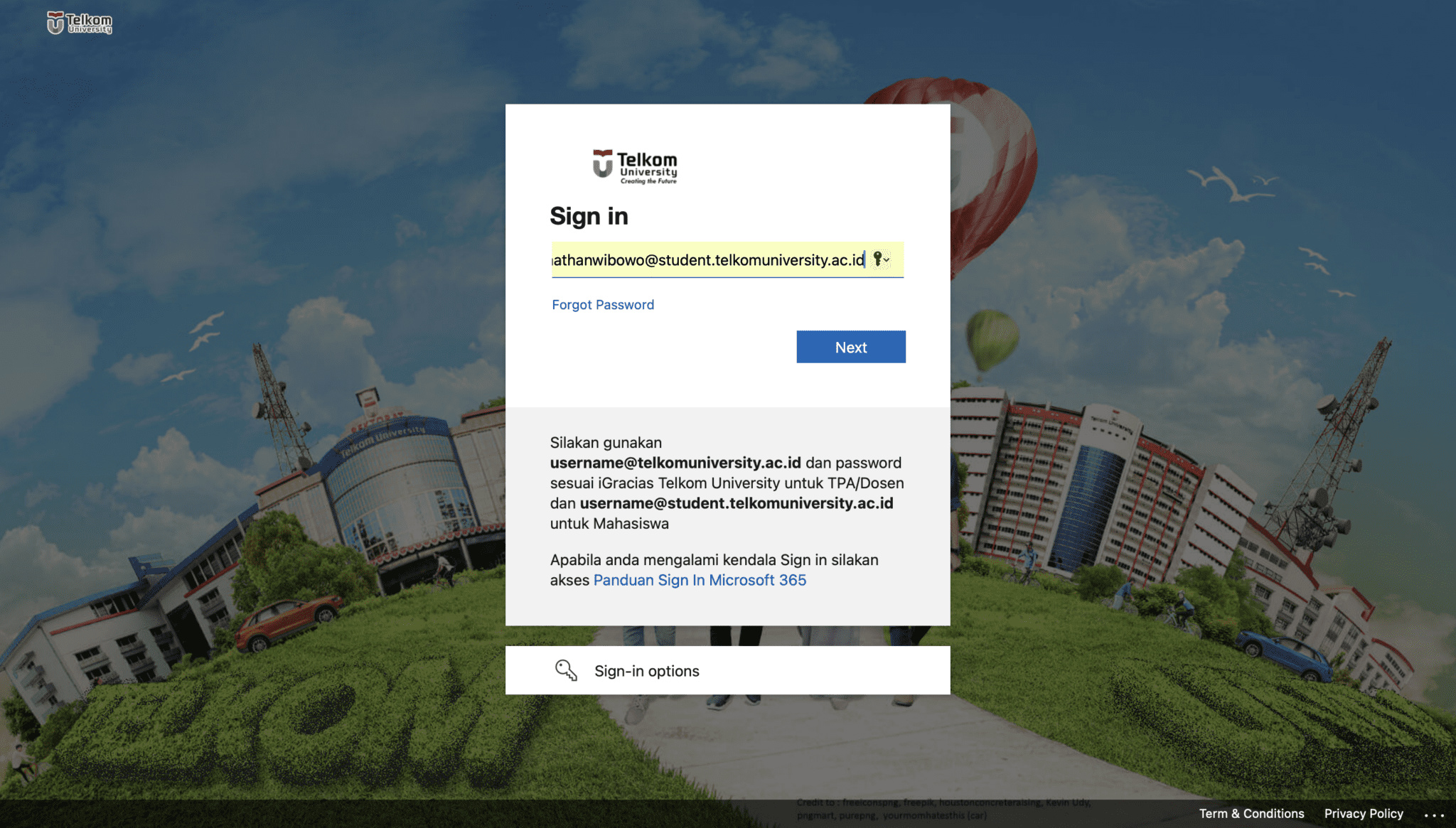
4. Type on SSO/iGracias username followed by @student.telkomuniversity.ac.id and click Next.
5. Type on SSO/iGracias password, click sign in. In case you are forgotten your password, do not click Forgot my password. Please try to login to the link igracias.telkomuniversity.ac.id.
If you are unable to log in to iGracias and Online Learning Tel-U, then there must be an error in your SSO/iGracias account. Please consult the PuTI Helpdesk on the number provided below: 0823-1994-9941 (WhatsApp only).
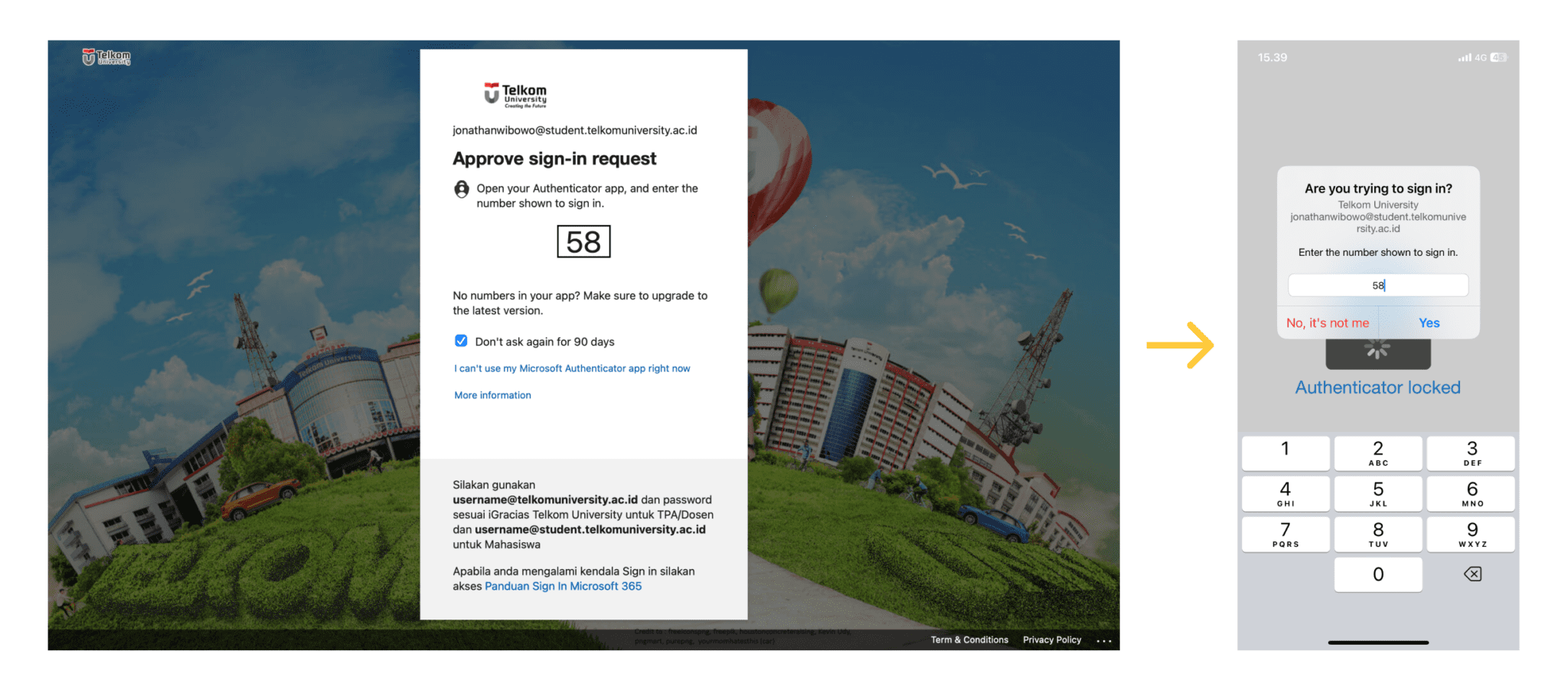
6. Authentication code will pop on the login screen, input the code in Microsoft Authenticator notification that is shown in the smartphone.
The authenticator guidance can be accessed through:
7. After successfully log in, please log out. It is very important to remember the username and password which you will use later on the test.
The purpose of simulation is to ensure that:
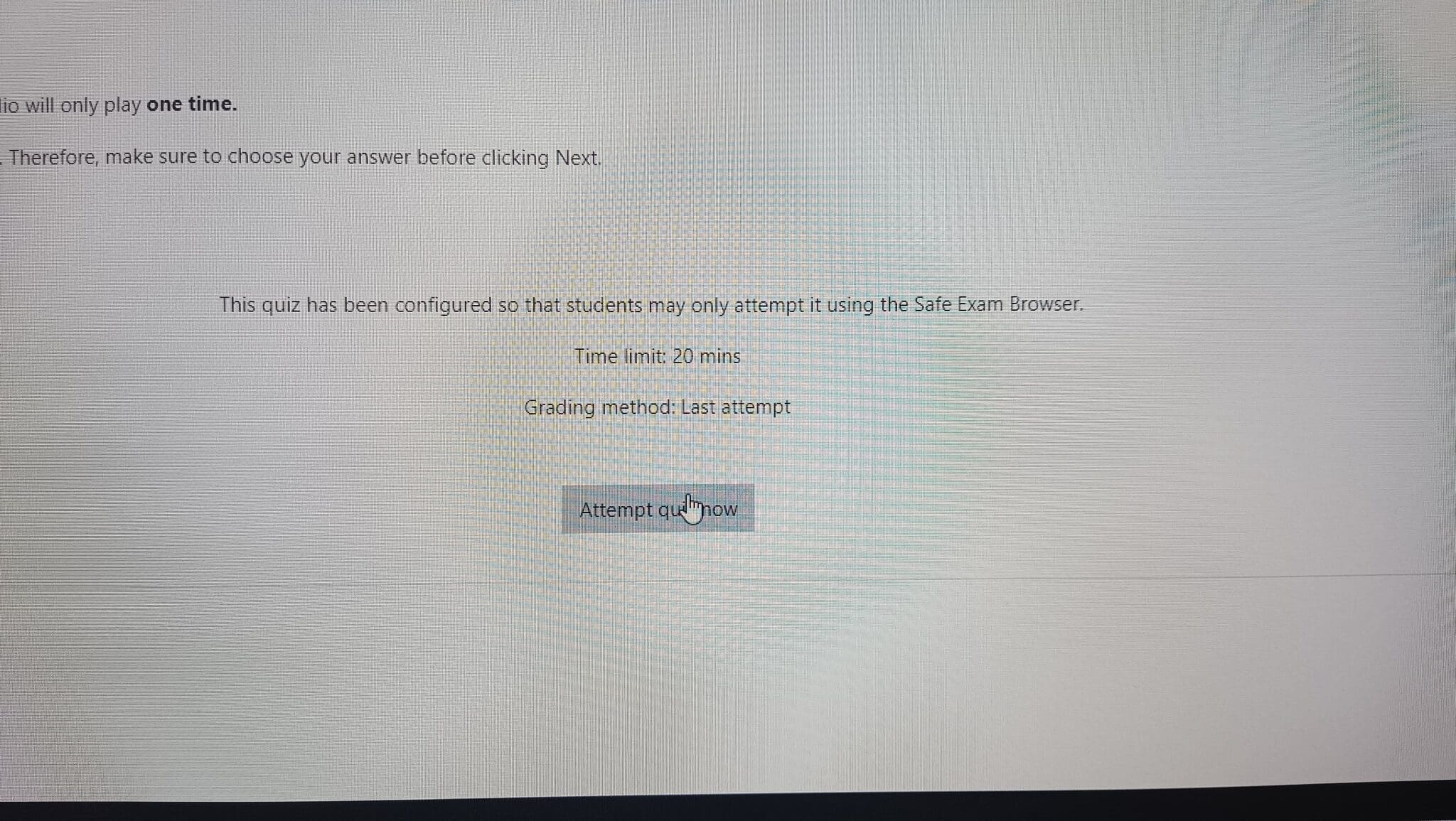
1. The appropriate version of SEB is installed. There’s an Attempt Quiz Now button in the Listening, Grammar, and Reading sections. If there’s a Back To Course button, the installed version of SEB may be different from the required version. If this happens, uninstall SEB from your device and follow the instructions again.
2. You are able to log in to onlinelearning.telkomuniversity.ac.id
3. You are able to listen to the audio in the Listening section.
4. You are familiar with buttons and features in SEB Test.
Simulation Stage:
1. Open and turn on the laptop which is used for the test
2. Put your wired earphone/headphone (NOT bluetooth) on your laptop.
3. Make sure SEB Version 3.7.1 is installed on your device
4. Download file simulation EPrT® MABA
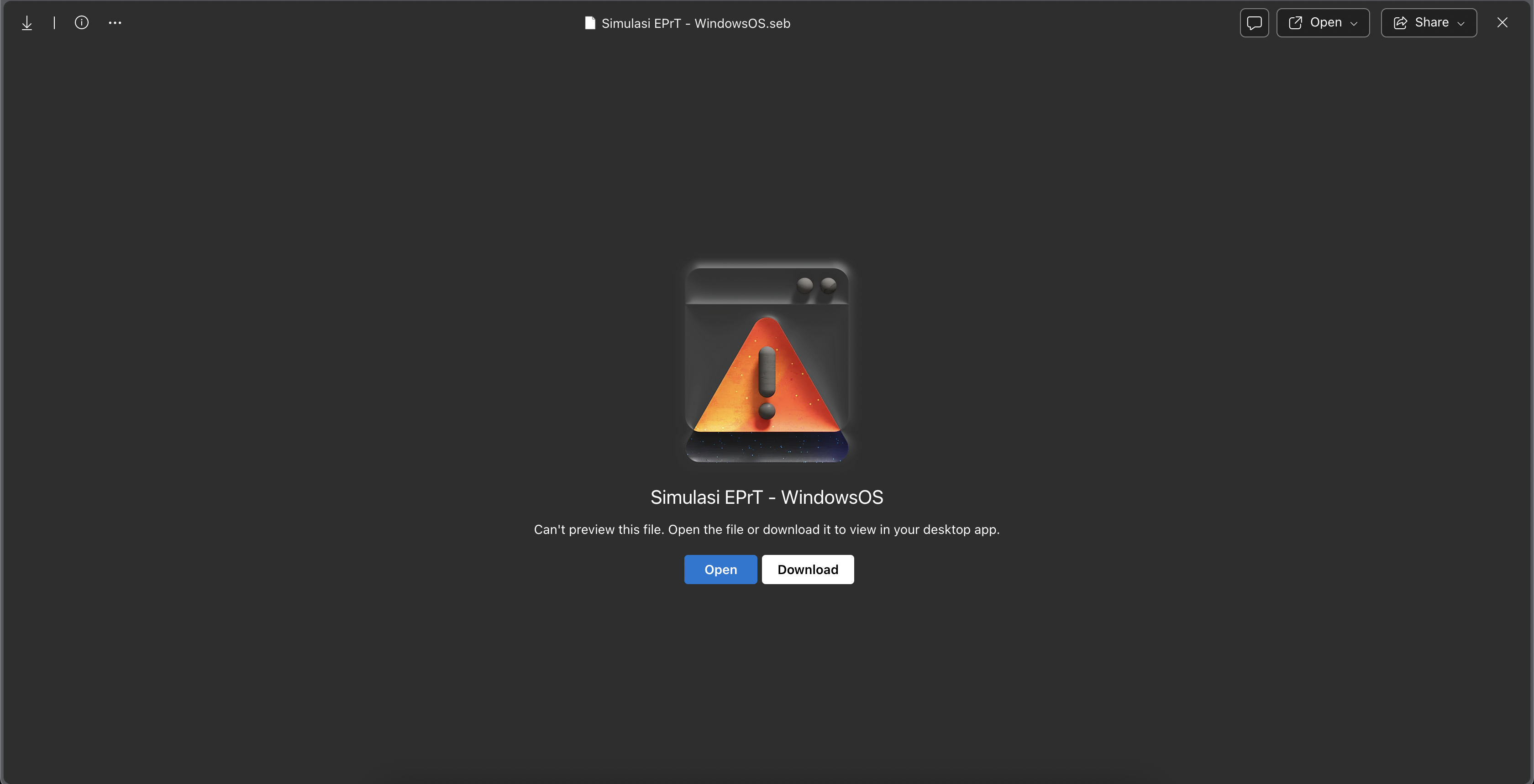
Notes: File which is used for simulation is different from the file for the test. Make sure you do not use the wrong file during the test. EPrT® MABA Test File will be given by proctors at the day of the test.
5. Double-click the downloaded file, make sure the name of the file is “Simulasi EPrT – WindowsOS.seb”.
Notes: After opening up the file, SEB will automatically close all applications running on your device. Make sure you are able to see the next stage simulation. It is recommended to download guidance which can be accessed from any other devices.
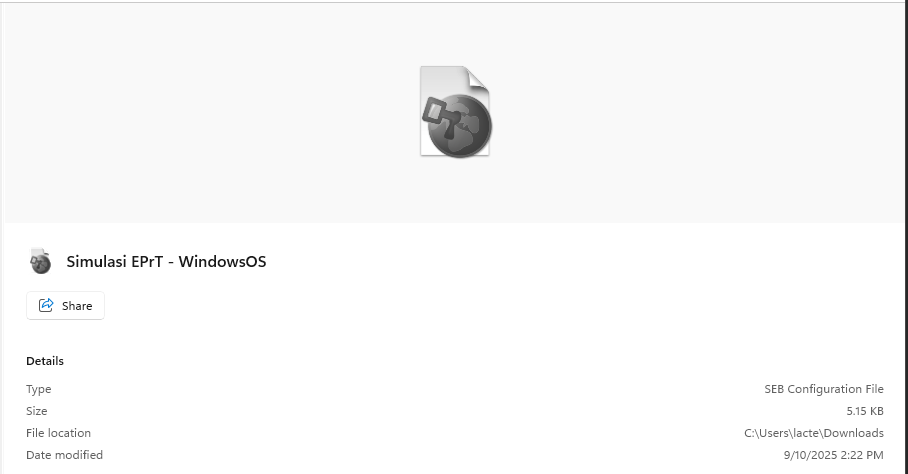
6. After double-click simulation file, a dialog box will be appear for you to put the password.
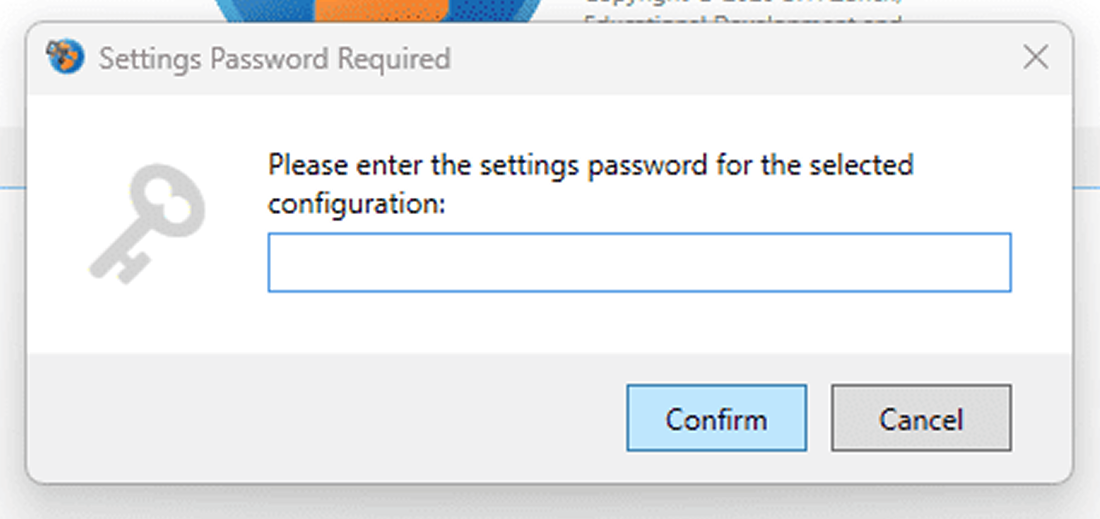
7. Click on the dialog box and type: startdemo (lowercase letter).
8. When the application is running, the onlinelearning.telkomuniversity.ac.id. page will be opened. If Zoom is installed on your device, a Zoom application will appear. Do minimize and ignore it.
9. Log in to onlinelearning.telkomuniversity.ac.id and put your usernameiGracias@student.telkomuniversity.ac.id and SSO/iGracias password.
10. For the first time access, Enrollment Key dialog box will appear. Put the enrollment key which is provided below: Simulasi-01 into the dialogue box.
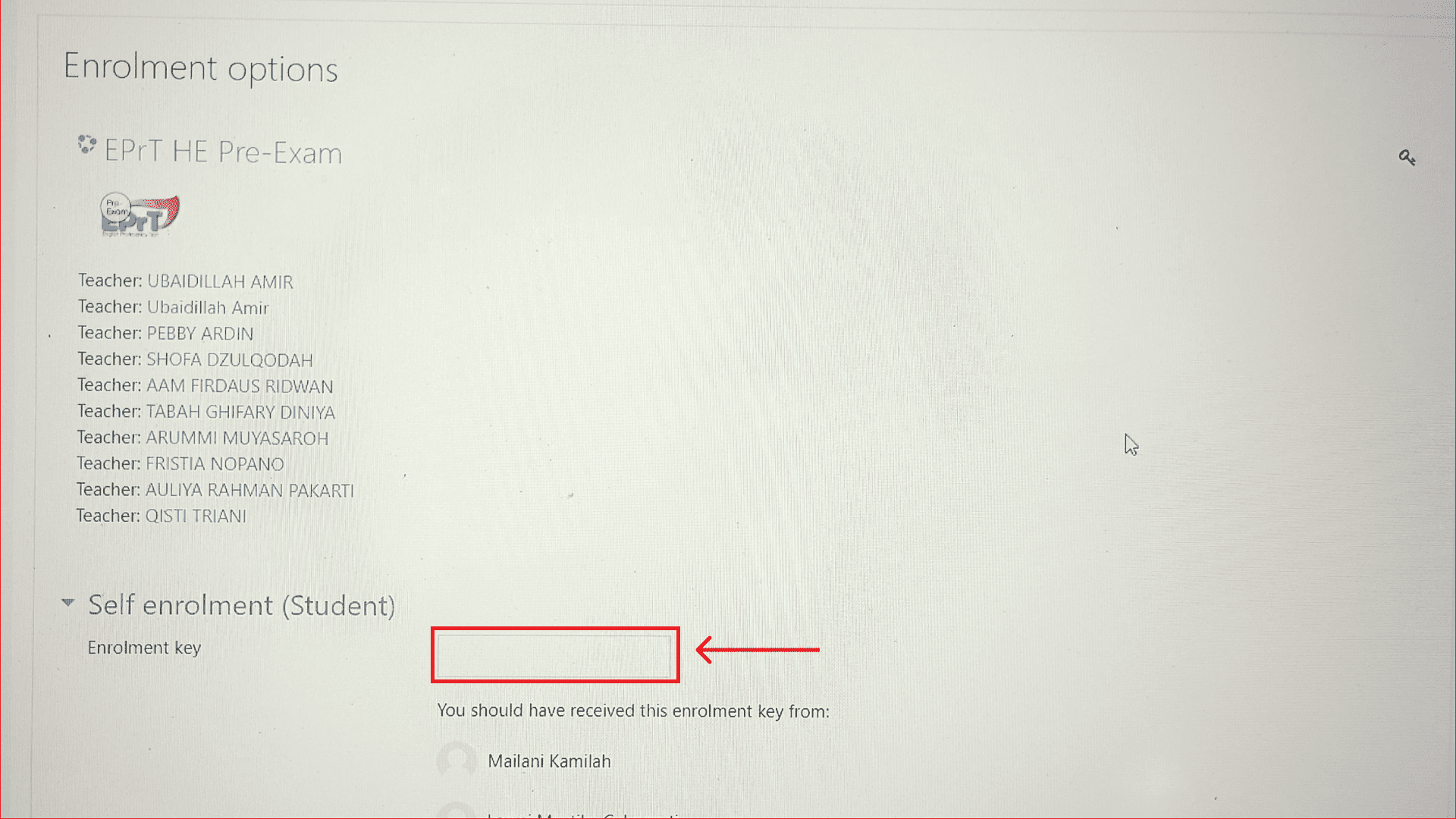
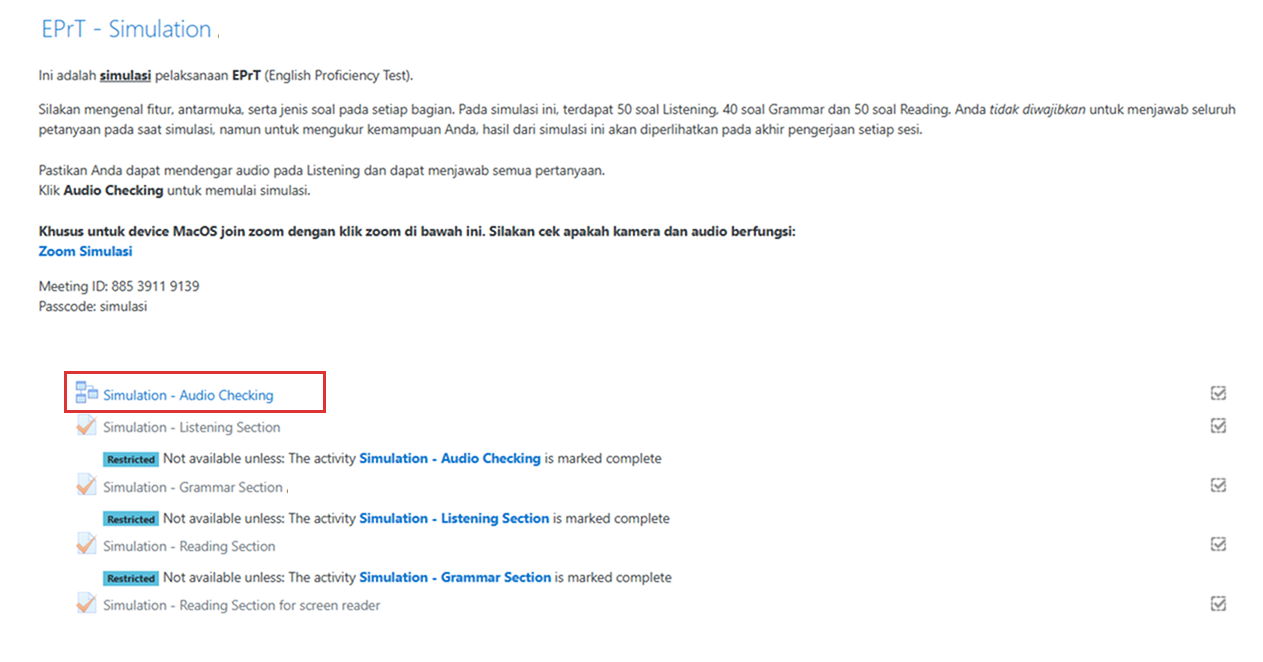
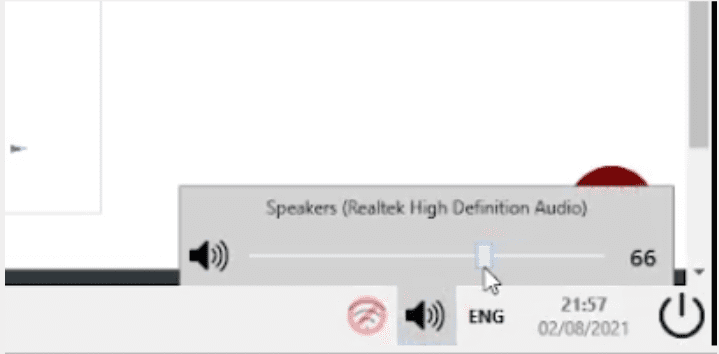
11. Click on the Audio Checking and to adjust the volume please click the Audio icon on the right bottom.
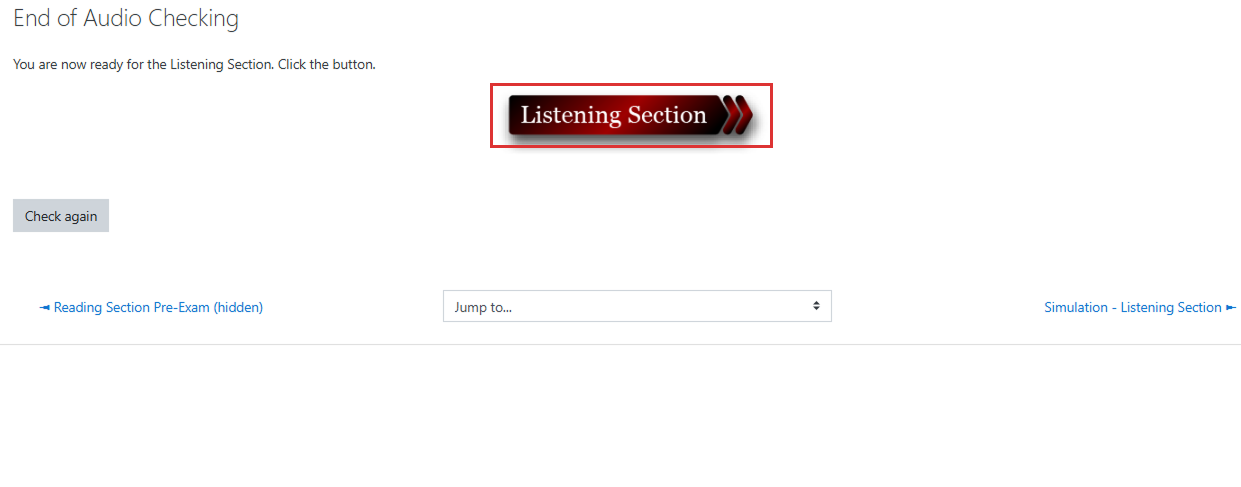
12. Click on the Listening Section to start listening.
13. On the Listening Section, scroll down and click Attempt Quiz Now.
14. After completing the Listening Section in the simulation, click Submit All and Finish.
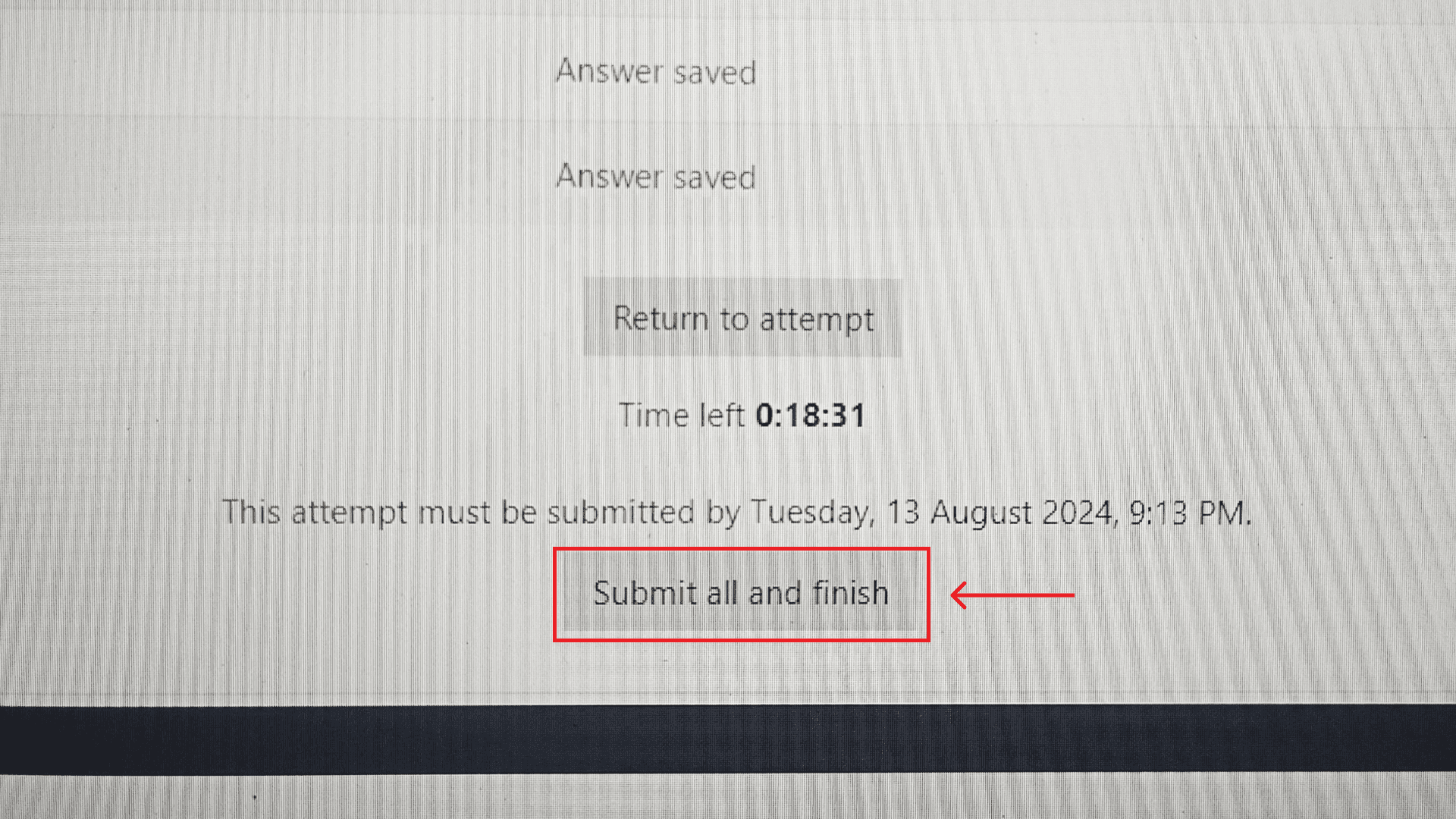
15. Click the Grammar Section button, follow the instruction on the Listening Section and then to the Reading Section.
16. After completing the Reading Section, quit the application by clicking the power button positioned on the right lower of the screen.
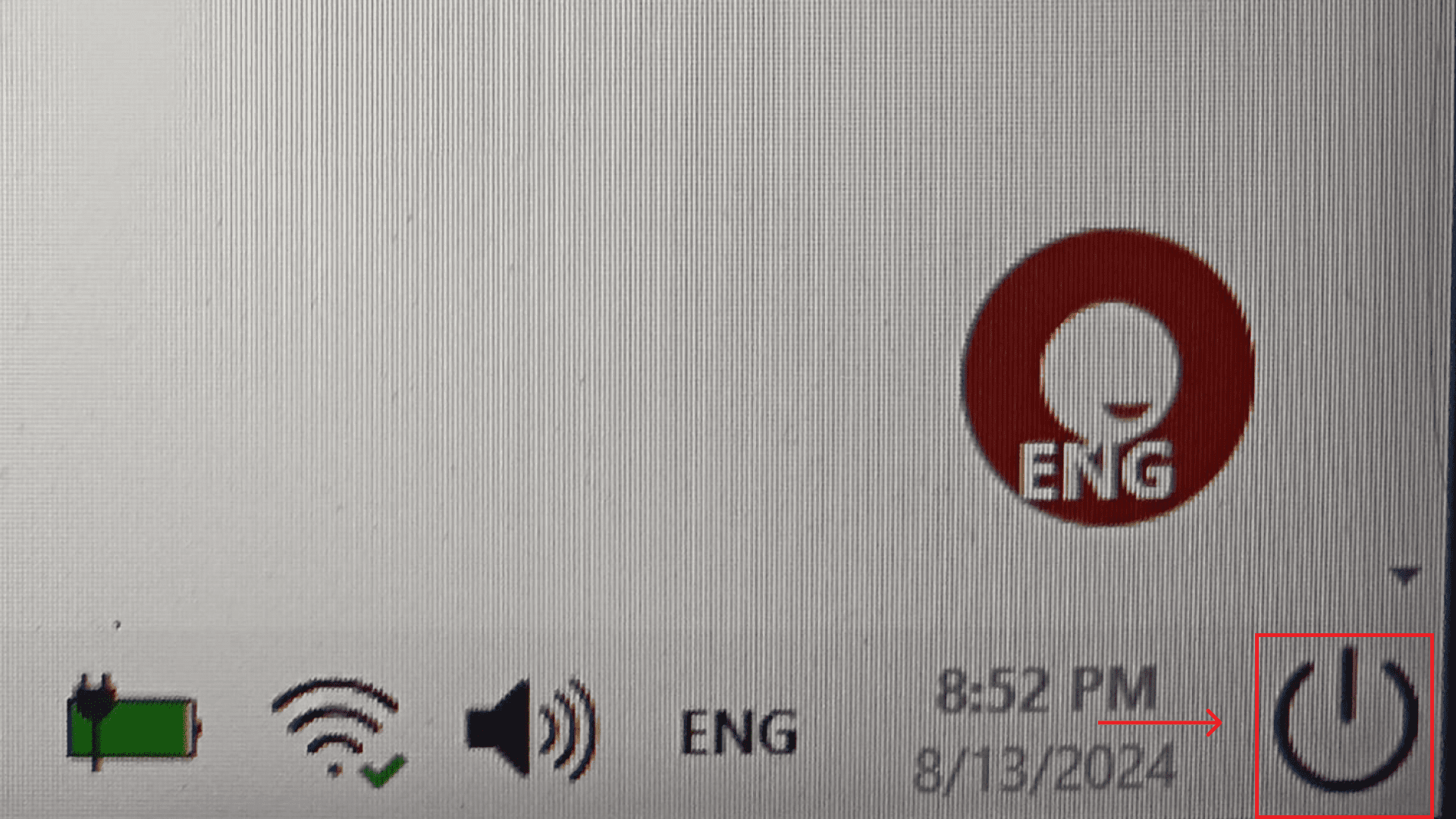
17. Type quitdemo in the dialogue box to log out from the application.
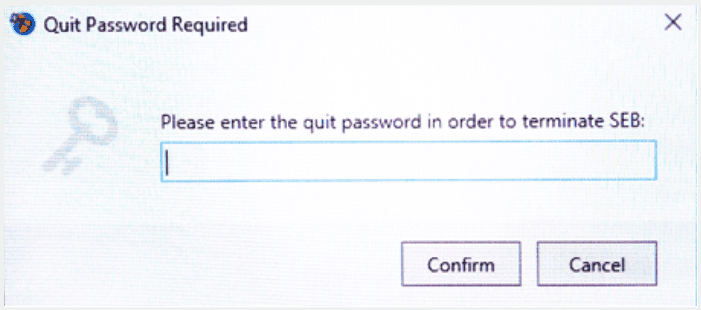
18. Click Confirm and the simulation is finished.
19. Make sure you are already accustomed with the SEB interface and features. If you have not, you can redo the simulation from the beginning until you are accustomed with it.
1. Open and turn on the laptop which is used for the test
2. Put your wired earphone/headphone (NOT bluetooth) on your laptop.
3. Make sure SEB Version 3.3.3 is installed on your device.
4. Download file simulation EPrT® MABA
Notes: File which is used for simulation is different from the file for the test. Make sure you do not use the wrong file during the test. EPrT® MABA Test File will be given by proctors at the day of the test.
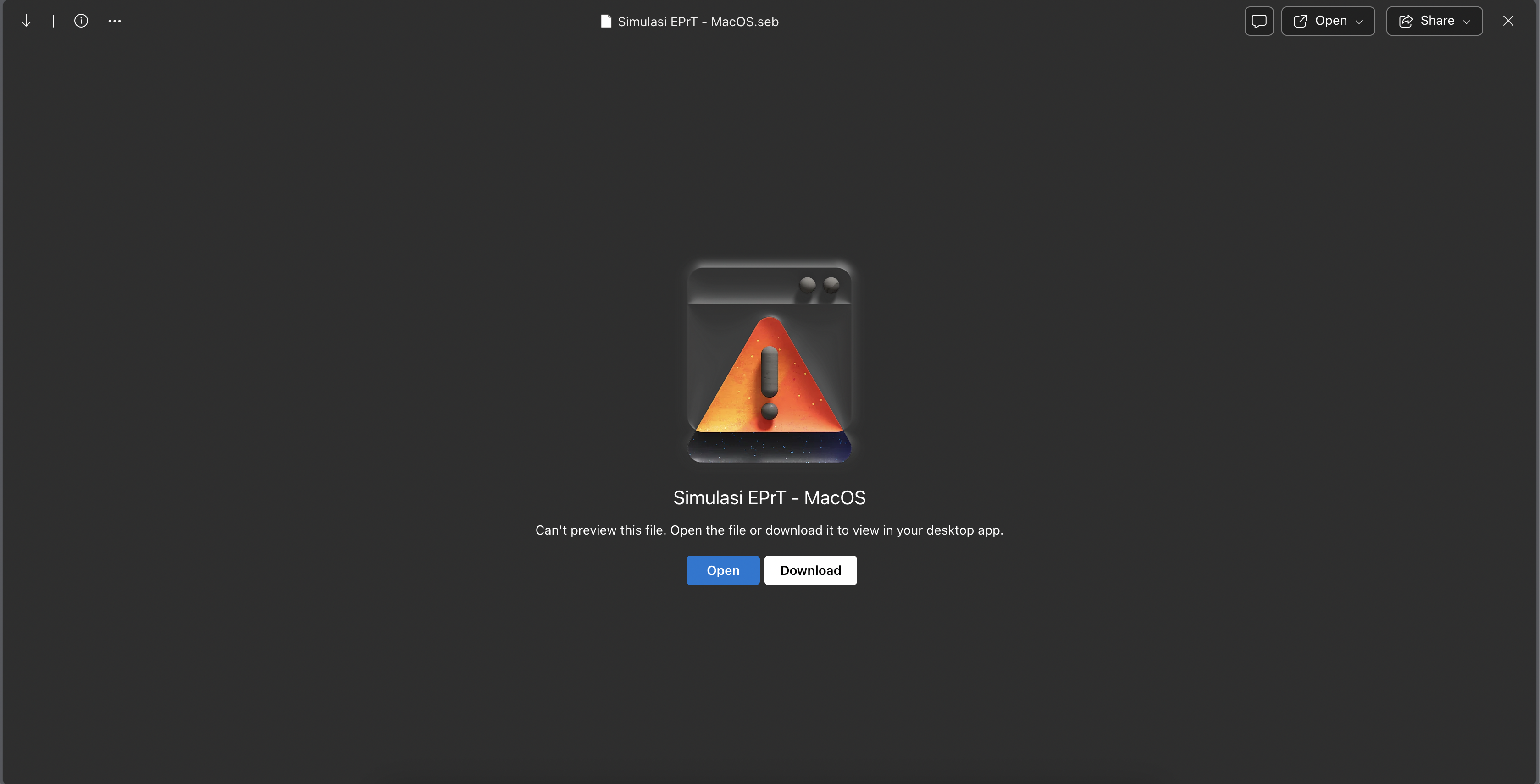
5. Please open the downloaded Simulation file, make sure the name of the file is “Simulasi EPrT – MacOS.seb”.
Notes: After opening up the file, SEB will automatically close all applications running on your device. Make sure you are able to see the next stage simulation. It is recommended to download guidance which can be accessed from any other devices.
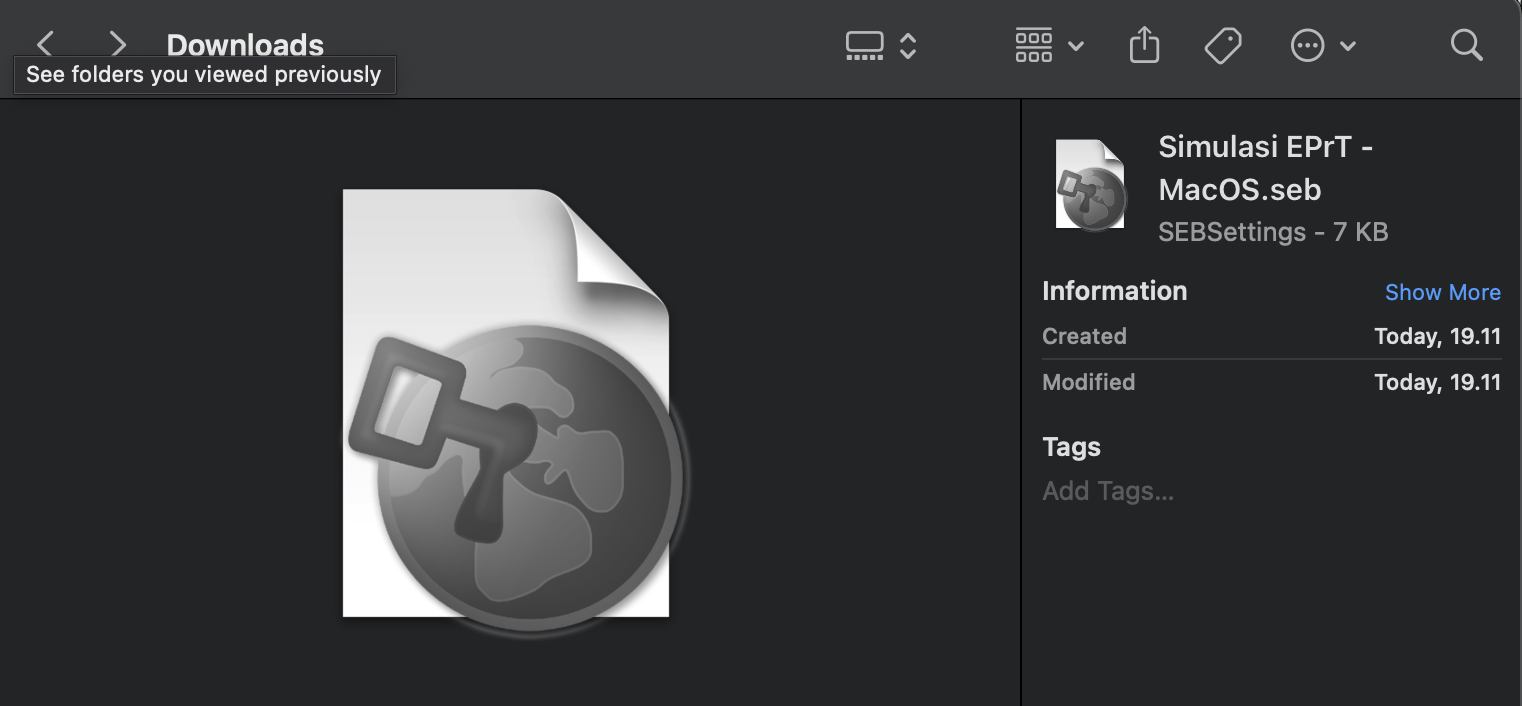
6. After double-click simulation file, a dialog box will be appear for you to put the password.
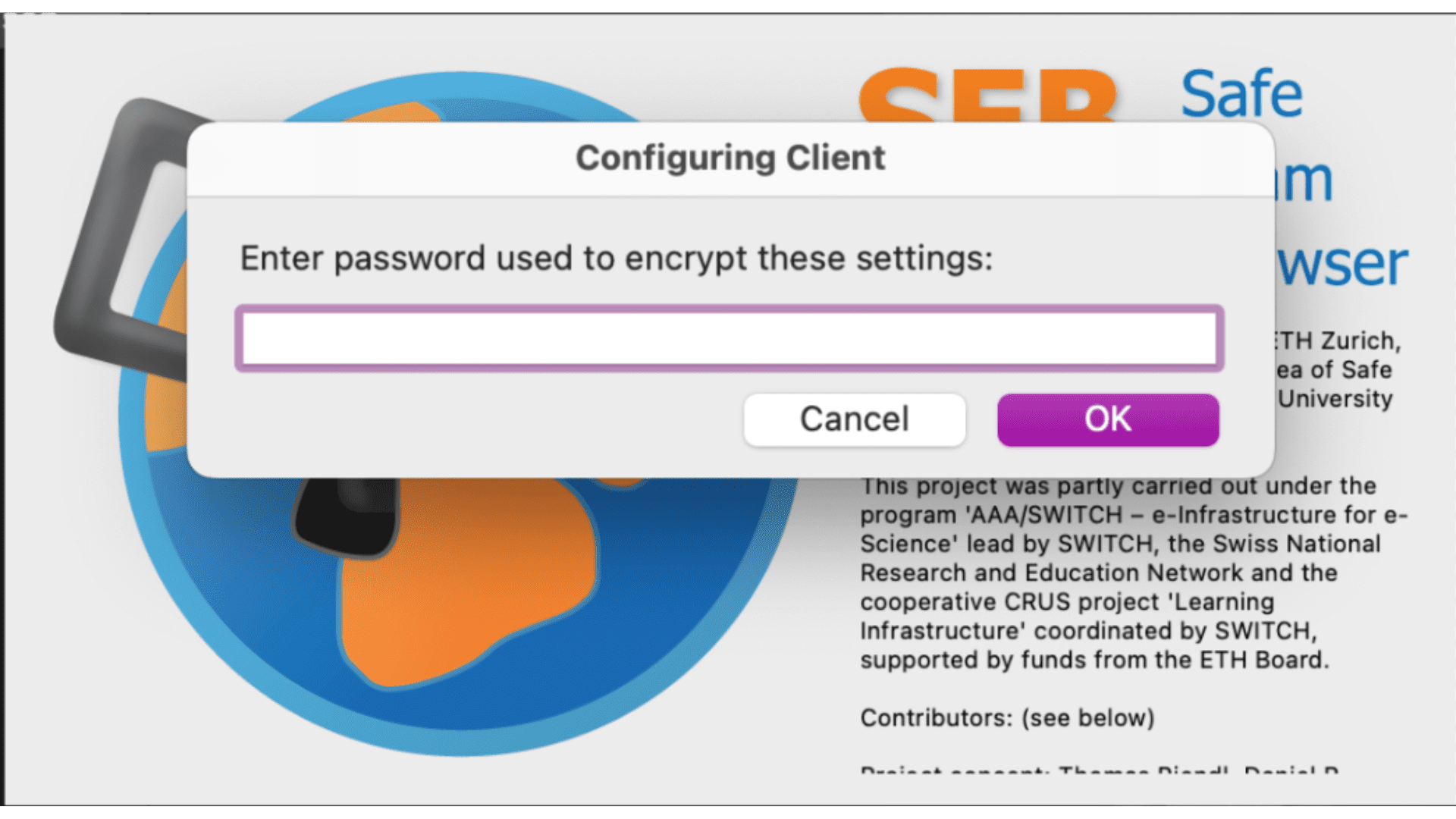
7. 7Click on the dialog box and type: startdemo (lowercase letter).
8. When the application is running, the onlinelearning.telkomuniversity.ac.id.
9. Log in to onlinelearning.telkomuniversity.ac.id and put your usernameiGracias@student.telkomuniversity.ac.id and SSO/iGracias password.
10. For the first time access, Enrollment Key dialog box will appear. Put the enrollment key which is provided below: Simulasi-02 into the dialogue box.
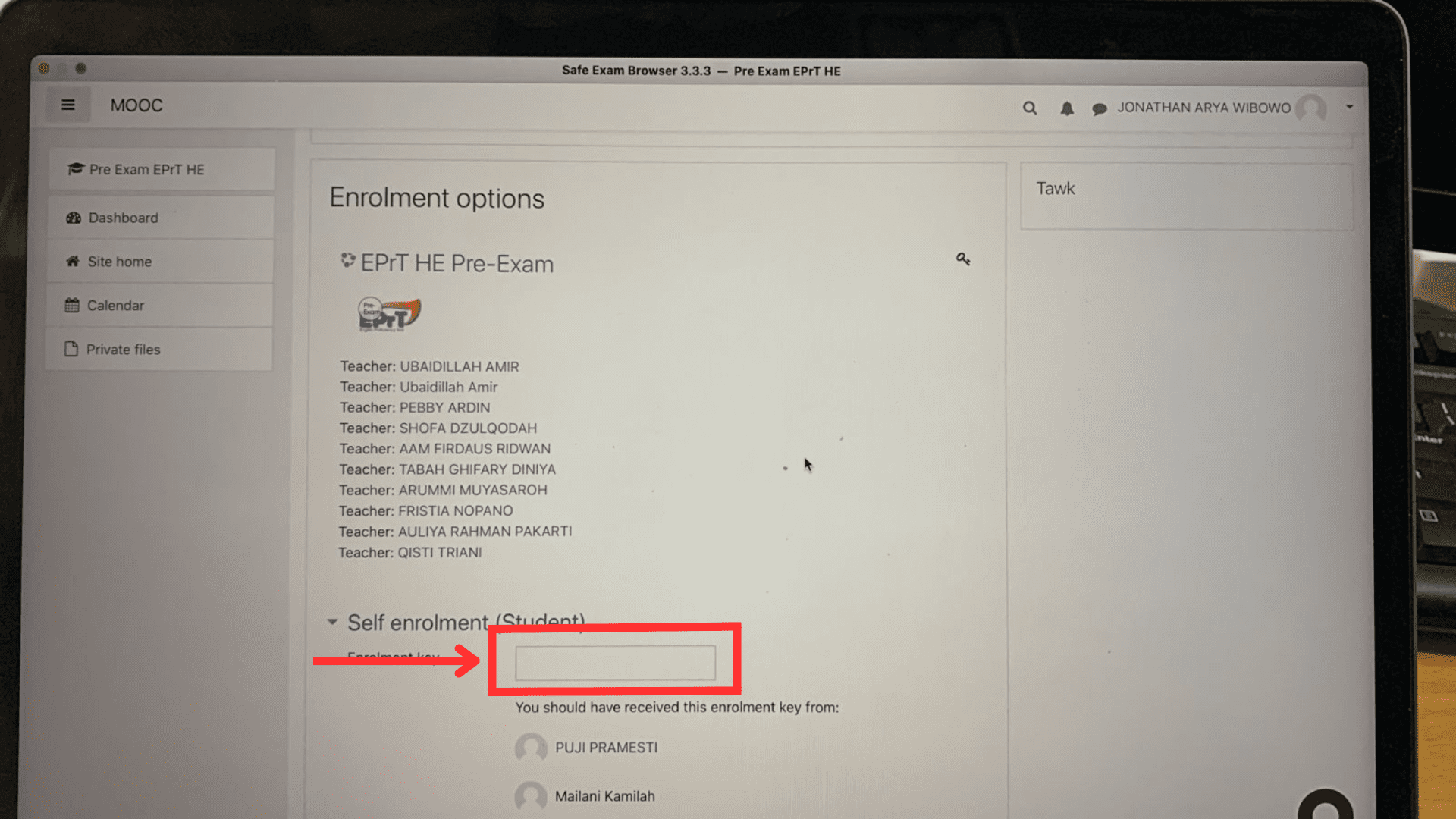
11. Click on the Audio Checking and to adjust the volume please click the Audio icon on the right bottom.
12. Click on the Listening Section to start listening.
Notes: On Mac OS There is NO RELOAD BUTTON. Make sure that in the Listening Section you have filled in every number, because in the Listening Section you cannot do Back or Reload.
13. On the Listening Section, scroll down and click Attempt Quiz Now.
14. In the Listening Section, you can move to the next question by pressing Next Page. On Mac OS, there is NO RELOAD BUTTON. Ensure that you have filled in every number in the Listening Section, because in the Listening Section you cannot go Back or Reload.
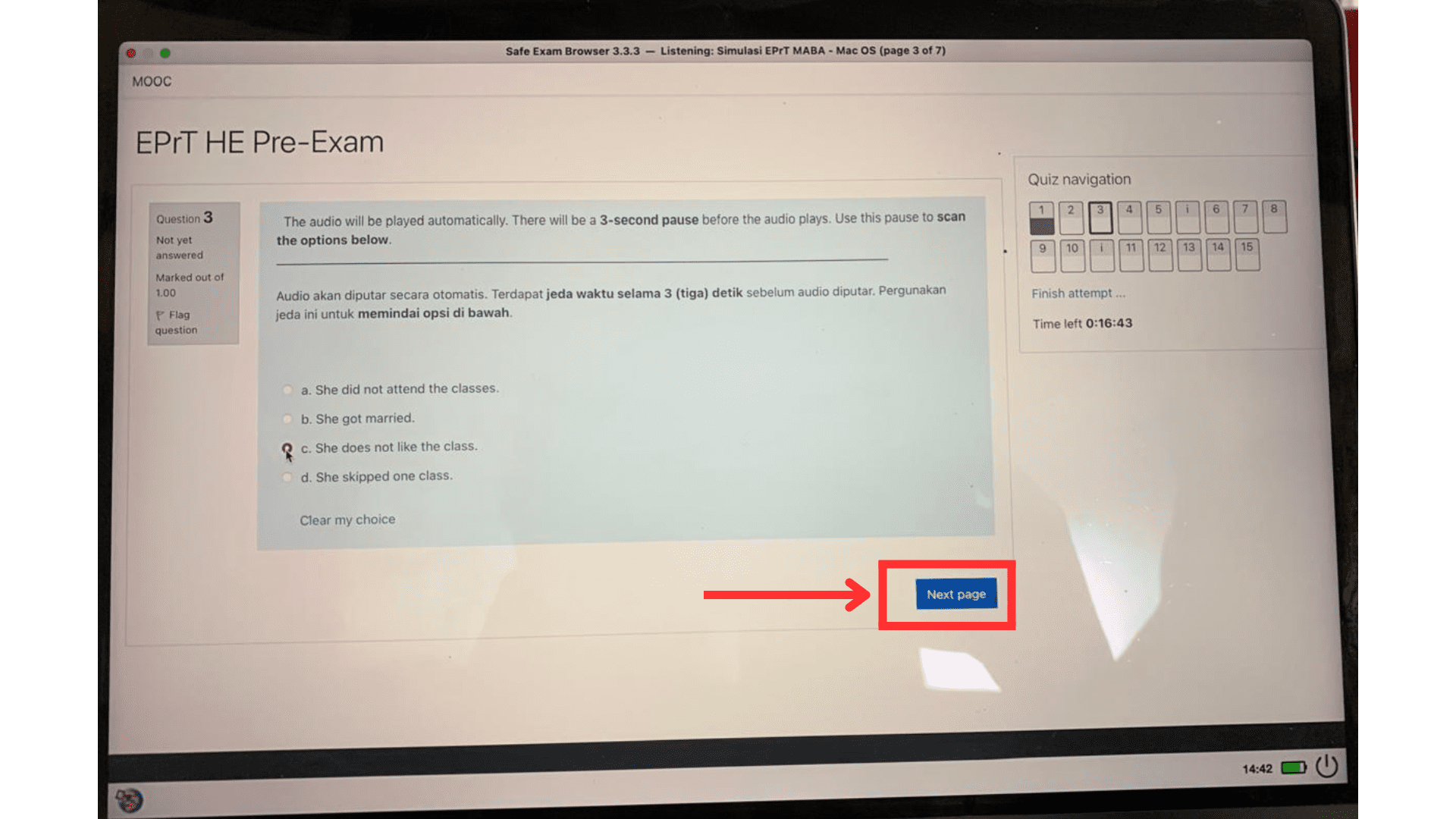
15. After completing the Listening Section in the simulation, click Submit All and Finish.
16. Click the Grammar Section button, follow the instructions on the Listening Section and then to the Reading Section.
17. In the Grammar and Reading Section, you can Back by clicking on the question number on the right of the test screen.
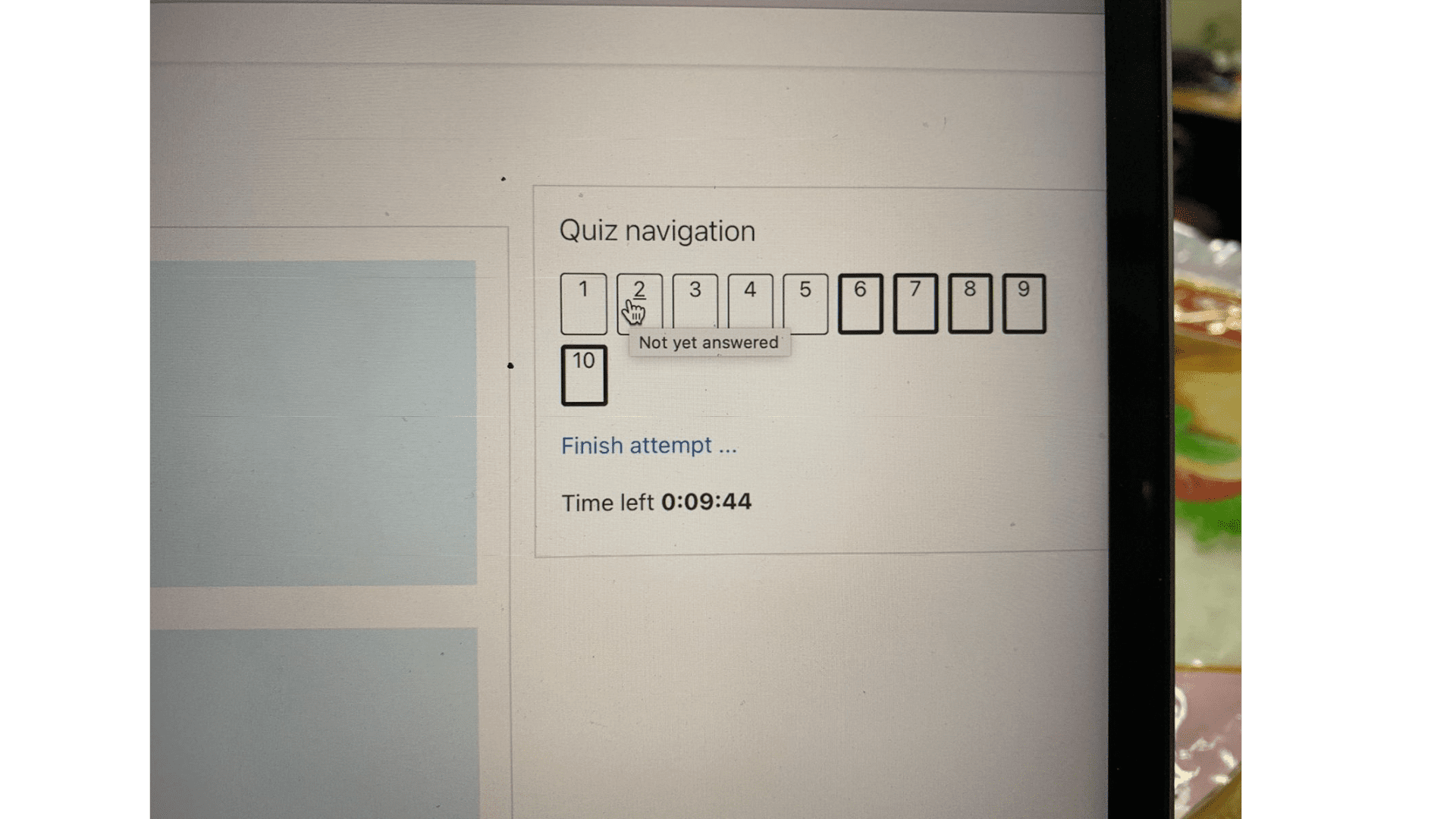
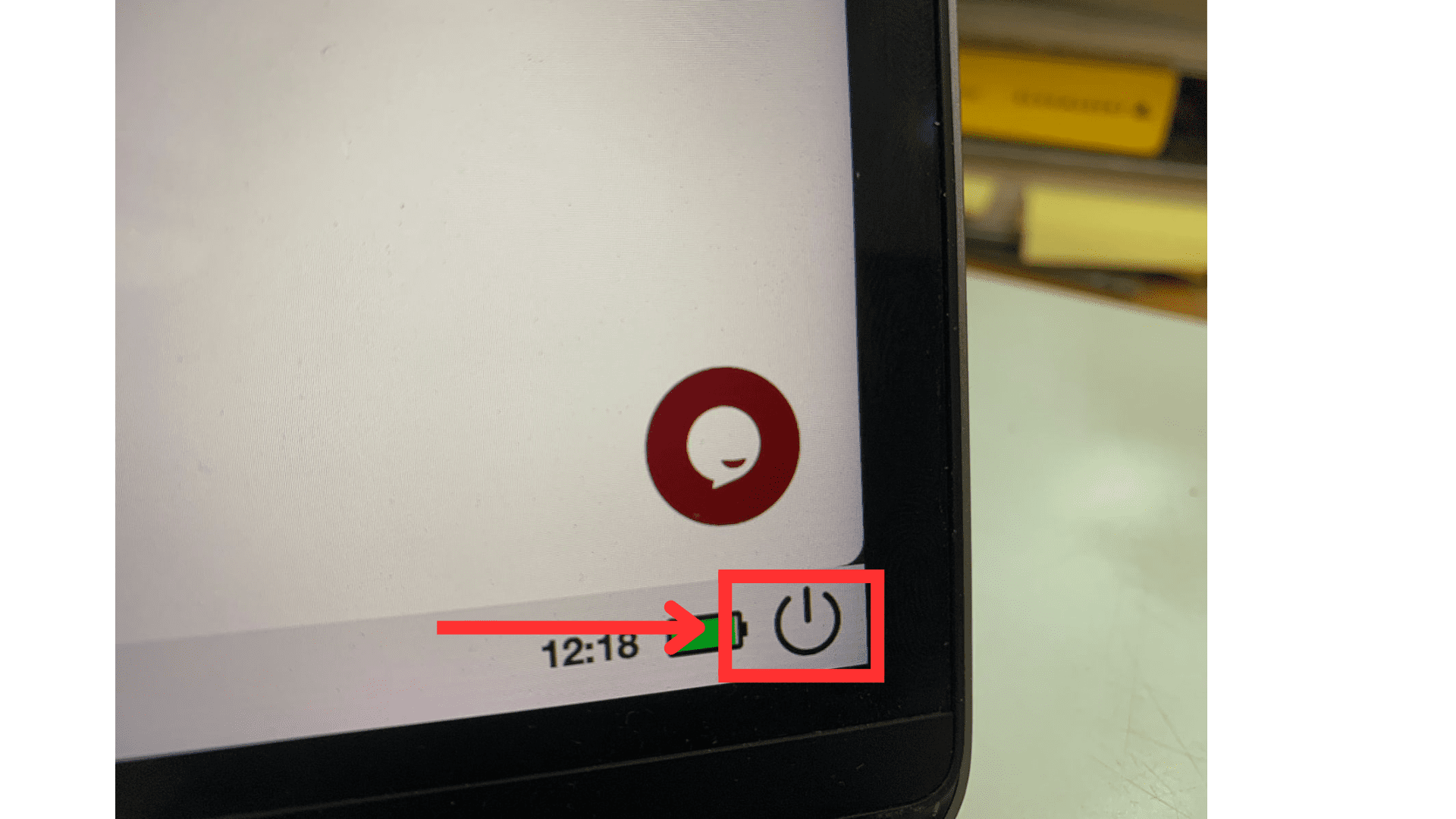
18. After completing the Reading Section, quit the application by clicking power button positioned on the right lower of the screen.
19. Type quitdemo in the dialogue box to log out from the application.
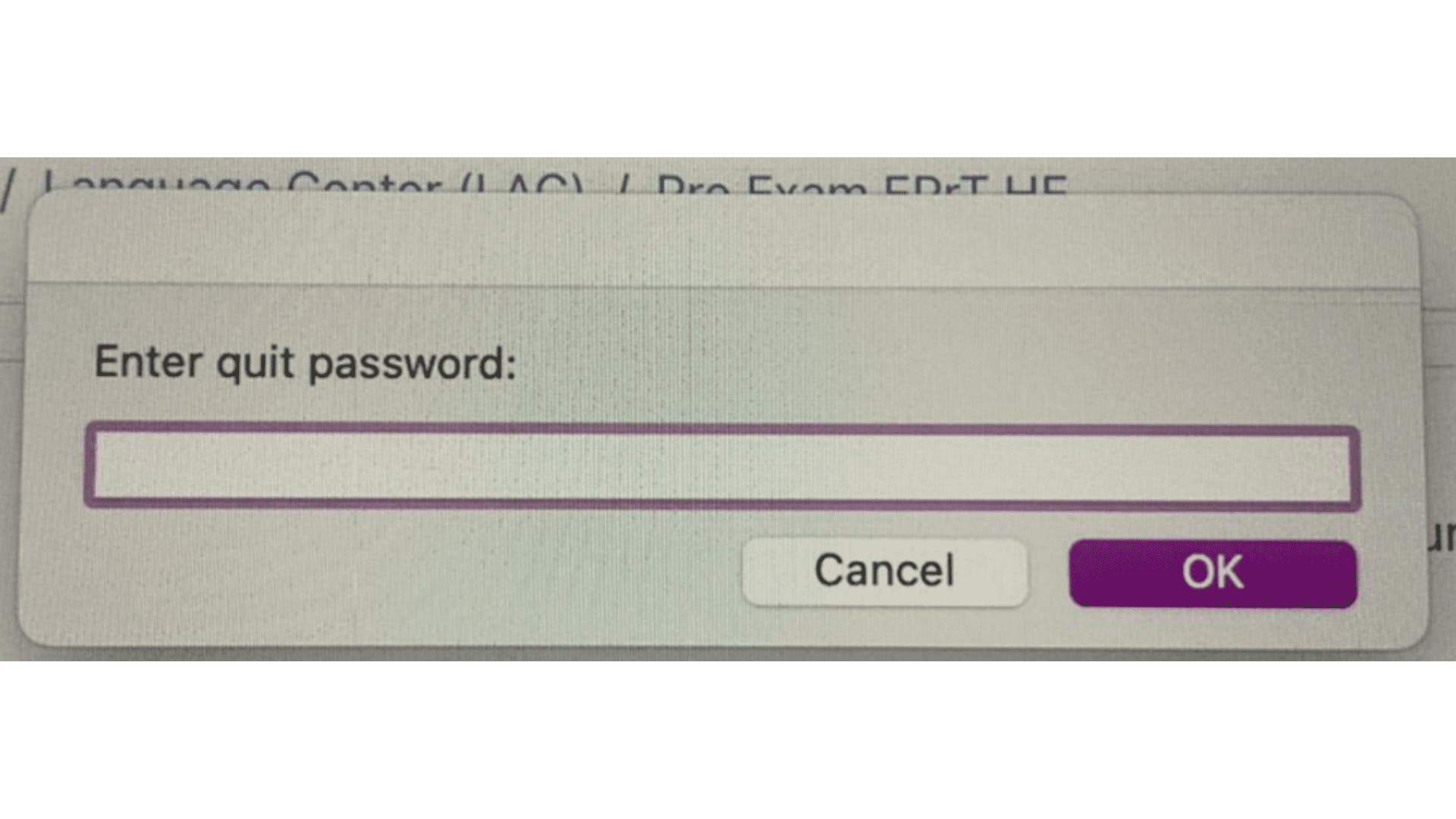
20. Click OK and the simulation is finished.
21. Make sure you have already accustomed with the SEB interface and feature. If you have not, you can redo the simulation from the beginning until you are accustomed with it.
If you are experiencing technical issues regarding the EPrT® MABA 2025/2026 before the test begins, please visit Self-Help Troubleshoot Guide to seek the solution of the issue.
You can access the link provided below for Self-Help Troubleshoot Guide:
Please fill out the form to check your readiness in doing EPrT® test. The form is filled in before the test at the following link:
If you have not filled out the form and experienced any issues during the test, you will not be allowed to continue and will not be granted reschedule.
If you encounter any issues during preparation and simulation, please consult with the Telkom University Language Center (LaC) Admin via WhatsApp at 0821-1735-3482. Here is the consultation schedule for the EPrT MABA® 2025/2026 preparation at Telkom University Jakarta Campus, Surabaya Campus, Purwokerto Campus & PJJ S1 Program:
● Senin-Kamis (09.00-12.00 & 13.00-16.00)
● Jumat (09.00-11.00 & 14.00-16.00)
Grha Cacuk Sudarijanto Building-A, 1st Floor
Jl. Telekomunikasi No. 1, Dayeuhkolot, Bandung
4. Test Day
1. Make sure you have downloaded and installed the SEB application on the laptop you will use for the test.
2. Make sure you have done your test simulation.
3. Make sure you have completed the Preparation Checklist Form.
4. Make sure you are in a well-lit room and have a stable internet connection.
5. Make sure you have your laptop and smartphone fully charged.
6. Prepare an identity card which is still valid (National Identity Card (KTP)/Student Card/Driver License/Passport/KTM). If you do not have those cards, please prepare your iGracias/My Tel-U and show your private data page before entering the room.
7. Make sure you join Zoom using the correct link according to the schedule. The Zoom link will be updated regularly one day before the test. Please check the Zoom link on the page tel-u.ac.id/jadwal-eprt-maba-25
8. Eat, drink, and get some sufficient rest before the test.
9. Use the toilet before the test starts because you will not be allowed to leave the test room during the test. If you are leaving the room before the test ends, your test will be considered as finished.
1. Make sure you attend the test in accordance with the schedule.
2. Make sure to prepare appropriate test space: a stable internet connection and a set of table and chair (participants who have not prepared appropriate test space are not allowed to join the test).
3. Wear formal and appropriate attire on the test day. The test will be recorded and documented.
4. Join Zoom through smartphone 30 minutes early before the test. If you are late, you are not allowed to enter Zoom and will be considered as forfeiting.
5. After joining Zoom, please rename your Zoom display name using the format: Full Name. The Zoom link can be found at tel-u.ac.id/jadwal-eprt-maba-25.
6. Proctors will check the identity, room, and test place. Proctors have the rights to decline your identity card if name and photo are unclear.
7. Position your smartphone in landscape mode so that it captures your laptop/pc screen and body.
8. Proctors will read and explain test instruction, regulation, and things which are considered as violations.
9. Participants need to download the EPrT® MABA Test File. The link will be shared by the proctors in Zoom.
10. Participants put their password and log in to Online Learning Tel-U.
11. Participants put an Enrollment Key given by the proctors.
12. Participants do the EPrT® Test .
13. If you experience issues, please ask proctors for further assistance. Proctors will assist participants in solving the trouble or issue.
14. If you have finished doing Reading (last section of the EPrT® test), please fill out the questionnaire by clicking Questionnaire button. After completing questionnaire, inform proctors through chat Zoom.
15. Proctors will check your laptop screen, ensuring you have done the test. Self-logout without any further instruction from the proctors is prohibited.
16. Logout password will be instructed after you have completed your test and confirmed to the proctors.
17. After you have completed the test and proctors have checked your test, you are allowed to log out from the Zoom.
Things considered as violation are as follows:
1. Opening other application other than test;
2. Copying/or capturing test questions;
3. Downloading questions in any forms.
4. Taking notes during the test;
5. Piloting other participants’ tests;
6. Asking other participants to pilot your test;
7. Getting help directly or indirectly from other participants in doing test;
8. Communicating in any forms directly or indirectly to people other than proctors;
9. Giving answer to other participants;
10. Letting other people stay in the test room during the test.
11. Leaving the test without proctors’ permission.
12. Eating, drinking, and smoking during test.
If you are proven to be committing violations, you will receive academic sanctions, and the test will be considered invalid. Proctors have the rights to stop your test and any violations will be reported immediately for the follow up action.
Participants are entitled to make schedule changes (reschedule) if they meet the following terms and conditions:
1. Have filled out the checklist preparation form (tel-u.ac.id/ceklis-persiapan-eprt).
2. Have simulated the EPrT® MABA 2025/2026 test.
3. Do not arrive late for the test and have filled in the attendance list at the time of the original test schedule.
4. For participants who are unable to attend due to illness, must notify the LaC admin via email LaC@telkomuniversity.ac.id and include a sick certificate from a doctor no later than 1 day after your test date. Write “Request for Change of EPrT® Schedule due to Illness” in the subject of e-mail.
5. Changes to the new test schedule will be informed by the admin via email after this series of EPrT® MABA 2025/2026 is completed.
5. After Test Day
All scores will be uploaded to iGracias no later than January 5, 2026. Test certificates can be downloaded by accessing iGracias by each participant.
Step-by-step on how to download EPrT® Certificate:
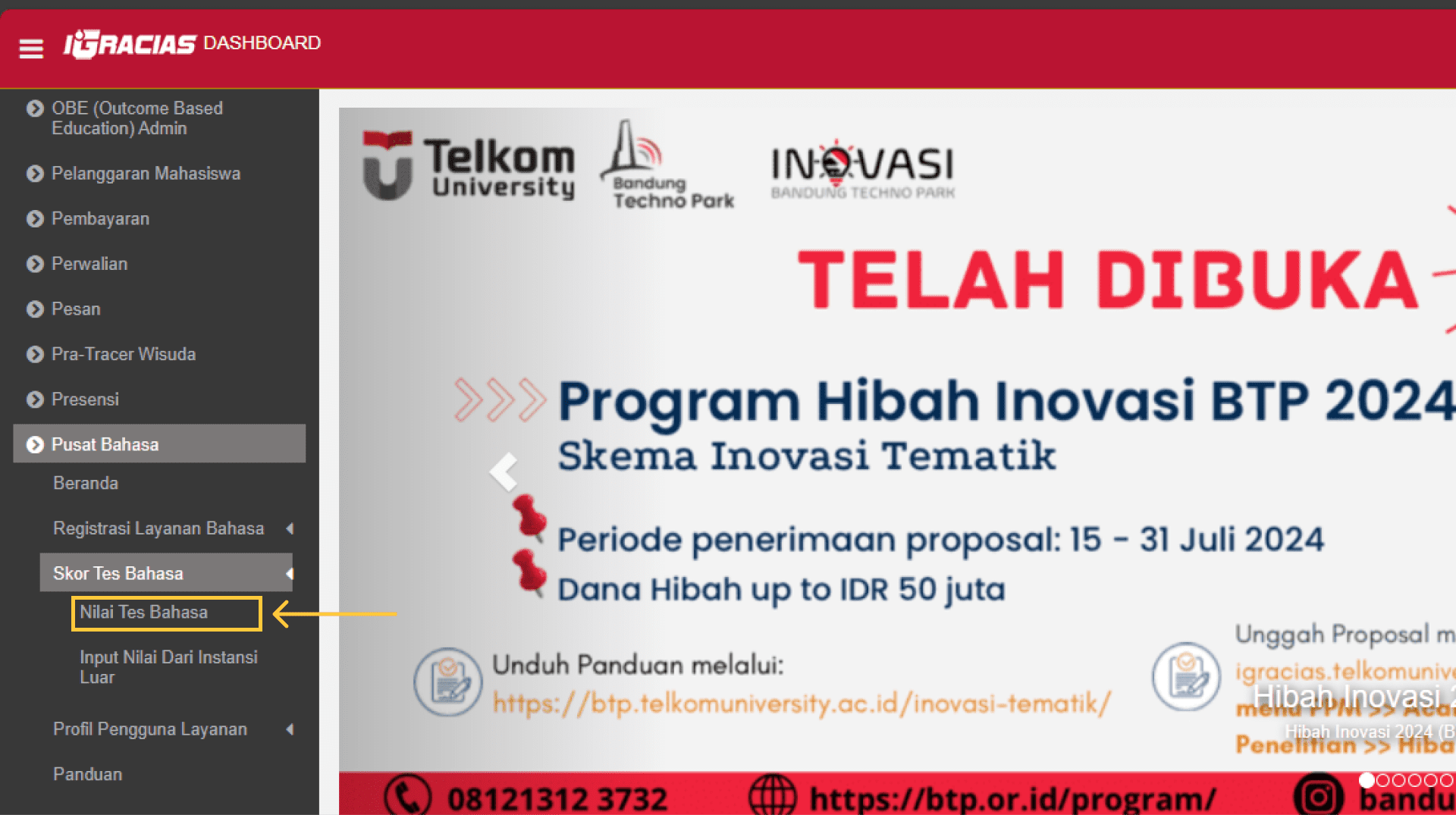
1. Login into iGracias
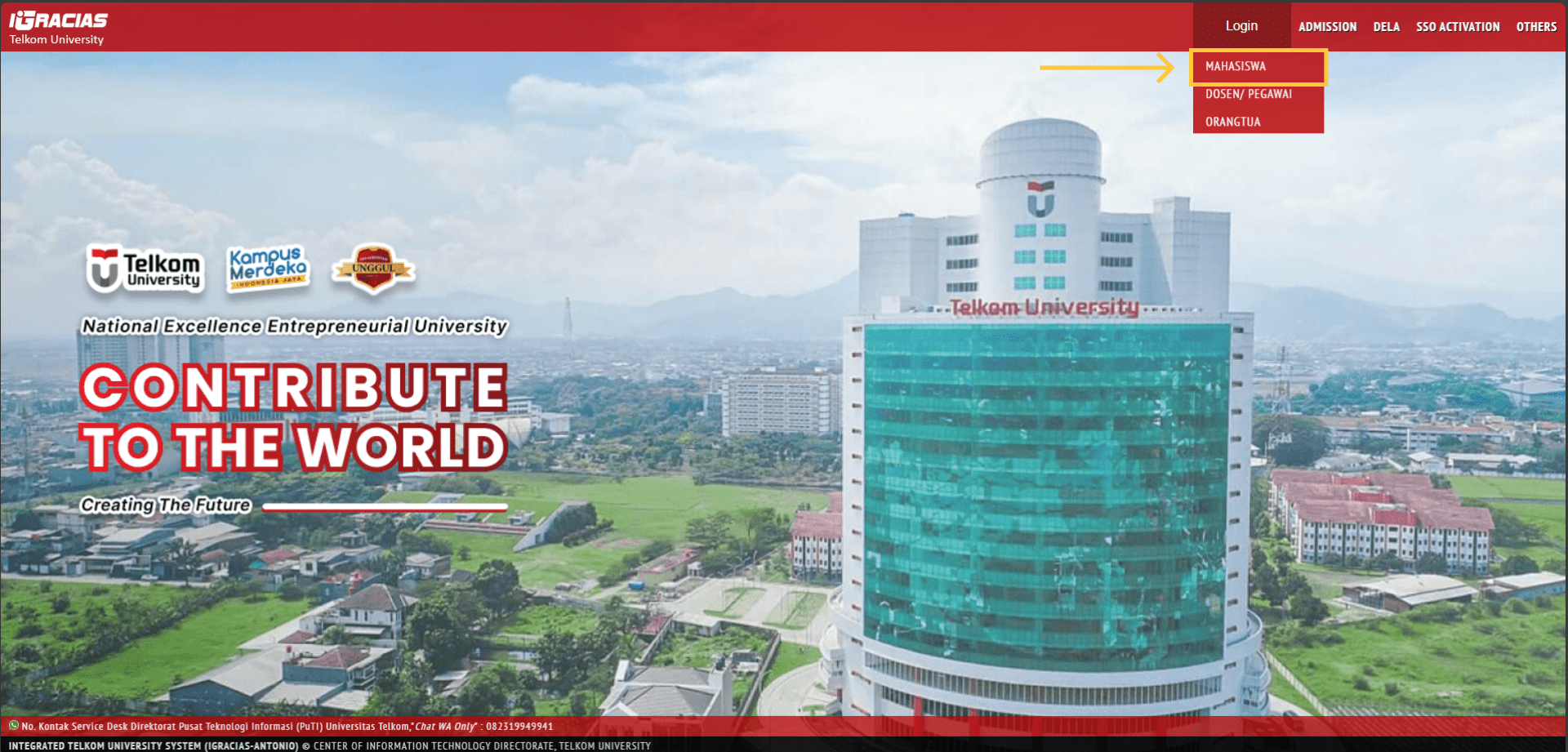
2. Select Pusat Bahasa (Language Center) menu
3. Select Skor Tes Bahasa (Language Test Score)
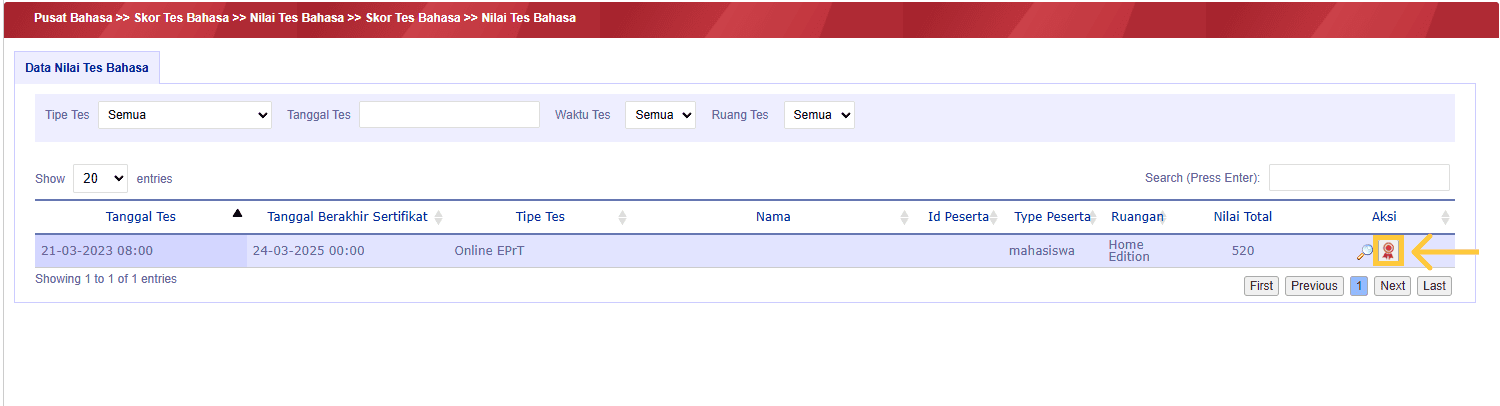
4. Select Nilai Tes Bahasa (Test Score)
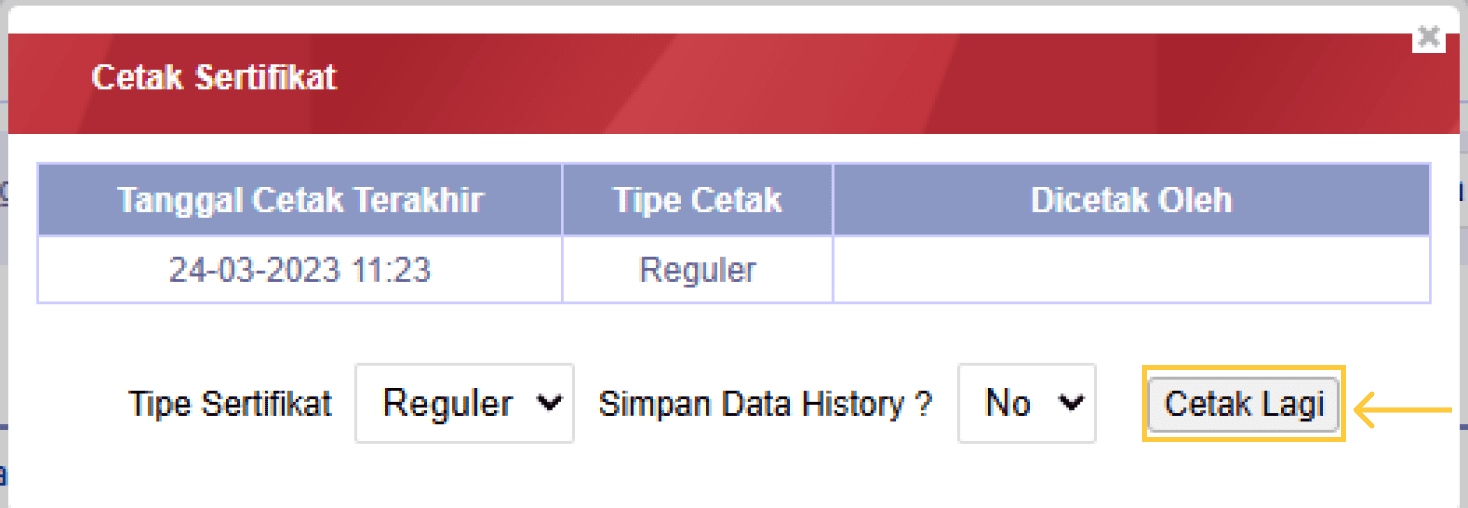
5. Click ikon sertifikat (icon certificate) on Aksi (action) column
6. Click cetak (print)