EPrT® MABA for Tel-U Bandung

The EPrT® MABA is intended for Telkom University Bandung freshmen and is administered onsite. This test is a special facility provided free of charge for Telkom University freshmen.

Description
EPrT® (English Proficiency Test) is an English proficiency test developed by Telkom University Language Center (LaC) to assess English language proficiency. EPrT® is an official test used at Telkom University, registered with the Intellectual Property Database.

The competency components assessed by EPrT® include:
● Listening Competence: 50 questions (45 minutes)
● Grammar Competence: 40 questions (25 minutes)
● Reading Competence: 50 questions (55 minutes)

EPrT® duration: ± 2–3 hours
EPrT® certificate validity: 2 years
EPrT® score range: 310-677
Benefits
The English Proficiency Test EPrT® can be used to meet various academic requirements, including:
● Requirements for Academic Progression
● Requirements for Final Project Defense Registration
● Requirements for International Mobility Programs
● Requirements for Fast Track Registration at Telkom University
● Requirements for LPDP Domestic Scholarship
Other Information
!Font Awesome Free v7.3.1 by @fontawesome – https://fontawesome.com License – https://fontawesome.com/license/free Copyright 2026 Fonticons, Inc.

Copyright Status

!Font Awesome Free v7.3.1 by @fontawesome – https://fontawesome.com License – https://fontawesome.com/license/free Copyright 2026 Fonticons, Inc.

Sample Certificate

!Font Awesome Free v7.3.1 by @fontawesome – https://fontawesome.com License – https://fontawesome.com/license/free Copyright 2026 Fonticons, Inc.

Sample Questions

Participants & Schedule
EPrT® MABA 2026/2027 is an EPrT® test specifically designed for freshmen enrolling in the 2026/2027 academic year. Participants in EPrT® MABA 2026/2027 include all freshmen, except for international program freshmen, new postgraduate students, and international or foreign national freshmen (WNA).

EPrT® MABA 2026/2027 for Telkom University Bandung will be held on November 9 – December 11, 2026. Each participant can check their EPrT® MABA 2026/2027 schedule by entering their student ID number in the search box below.

New Student EPrT Schedule Checker

Enter your Student ID (NIM) to view your EPrT test schedule details.


Requirements
Participants must bring their own testing devices. Participants who do not meet the requirements for hardware, software, and test account will not be permitted to take the test, and their right to take EPrT® MABA will be revoked.
A. Hardware
Participants must prepare the following to take the test:
1. Laptop with the following specifications:
  • Windows 8.1 or later, or macOS 10.13 (High Sierra) or later.
  • At least 8 GB of RAM.
  • At least 20 GB of free storage space.
  • It is not recommended to use a company laptop.
2. Wired earphones/headphones to ensure the test runs smoothly and effectively
3. A smartphone in good working condition with sufficient battery for the entire test
Before the day of the test, participants must make sure all the following applications are installed.
1. Safe Exam Browser (SEB)
  • Windows: Safe Exam Browser (SEB) version 3.7.1. Download via the following link: bit.ly/SEB371.
  • macOS: Safe Exam Browser (SEB) version 3.3.3. Download via the following link: bit.ly/SEB333-mac.
Caution: The EPrT® can only be used with SEB versions listed above. Using a different version of SEB may cause issues during the test.

2. Microsoft Authenticator
Participants must install the Microsoft Authenticator app on their smartphone and make sure their SSO account has been activated using Microsoft Authenticator before the day of the test. The guide for MFA installation and activation is available at tel-u.ac.id/mfaoffice.
The EPrT® Language Test is administered through the Telkom University Online Learning platform (onlinelearning.telkomuniversity.ac.id).

Participants have to use a Single Sign-On (SSO) account. Online learning username is as follows: SSO username@student.telkomuniversity.ac.id. The password for online learning is the same as their SSO/iGracias account password.

Participants who encounter any issues with their SSO account should contact the PuTI Helpdesk via WhatsApp at +62 823-1994-9941.
Preparation
Participants must complete all preparation stages before the day of the test. If participants encounter issues during the test due to their lack of preparation, the test cannot be rescheduled.
A. Test Account Activation
The EPrT® is administered through the onlinelearning.telkomuniversity.ac.id platform, which can be accessed using an SSO/iGracias account. Therefore, participants must first activate their student SSO/iGracias account to use their Tel-U Online Learning account.
Once a participant's SSO/iGracias account has been activated, their Tel-U Online Learning account will be ready to use automatically. Freshmen who have not yet activated their SSO/iGracias accounts should do so immediately. Information about SSO/iGracias account activation is available at the following link:
To take the EPrT®, participants must install Microsoft Authenticator on their smartphone. This app is used to verify SSO account ownership when logging in to the test system. Microsoft Authenticator can be downloaded from the Google Play Store or the App Store.

Participants are required to test their SSO login before the test. Participants who have trouble logging in should contact the PuTI Helpdesk. The guide for Microsoft Authenticator installation and activation is available at the following link:
After installing the software as instructed, follow these steps to run the simulation:
1. Plug the wired earphones/headphones into your laptop/PC. Click “Open EPrT® System”.
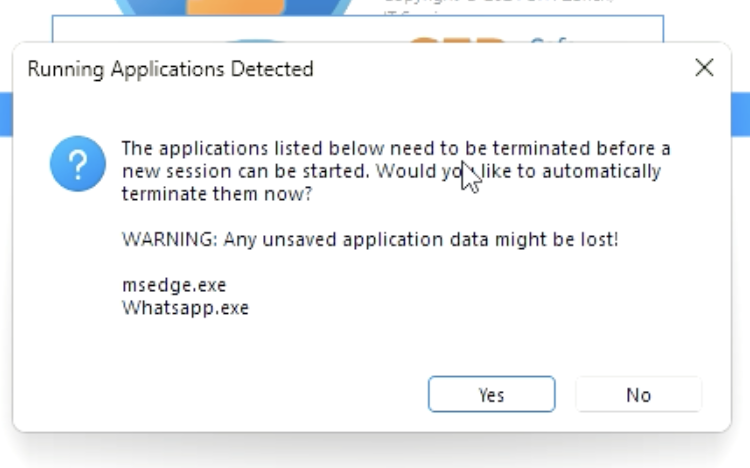
2. If a pop-up appears asking you to close other applications, click “Yes.”
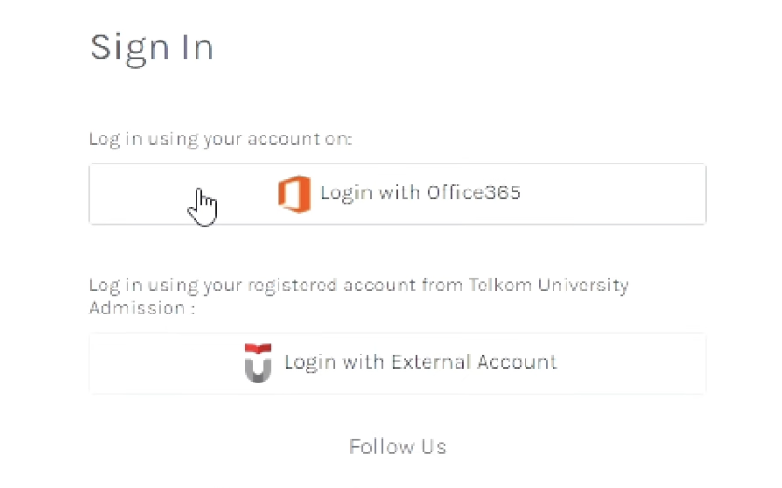
3. You will be redirected to the test login page. Select Login with Office365. Enter your username and password for your onlinelearning account.
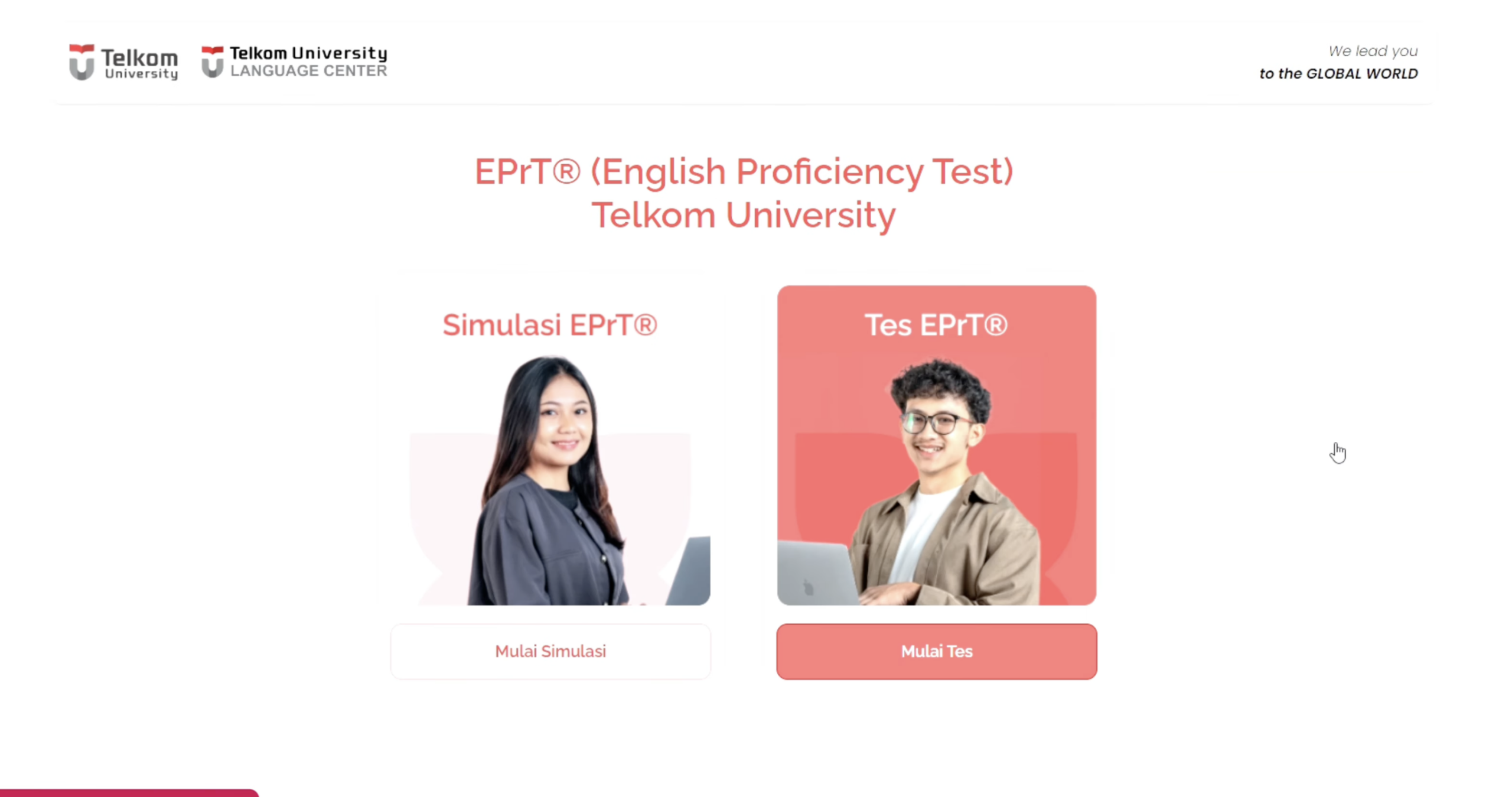
4. You will be redirected to the EPrT® homepage. Start the simulation test by clicking “Mulai Simulasi”. You will be directed to the EPrT® HE Pre-Exam page.
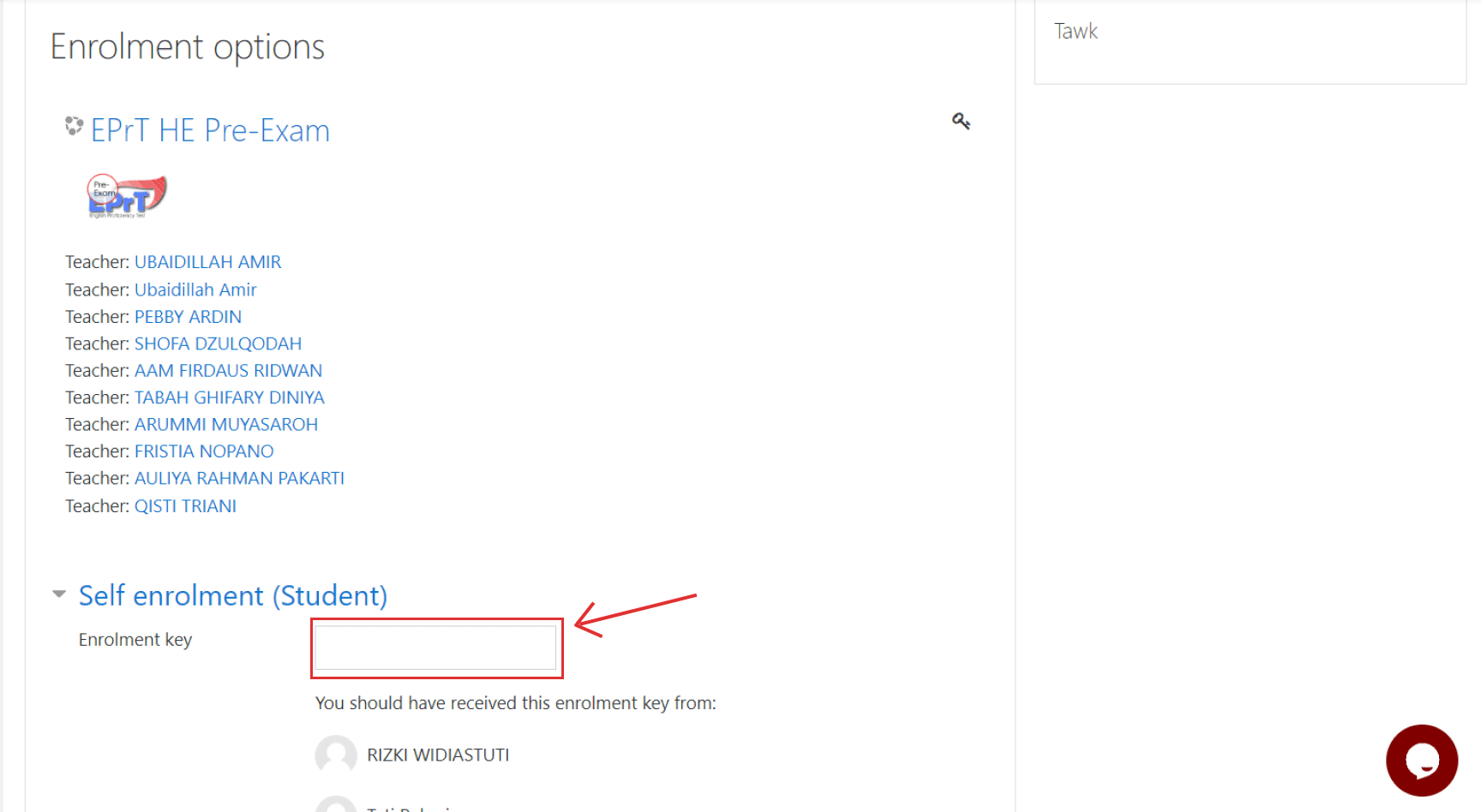
5. Scroll down to find the box to input the Enrollment Key. Enter the Enrollment Key “coba-simulasi”, then press Enter.
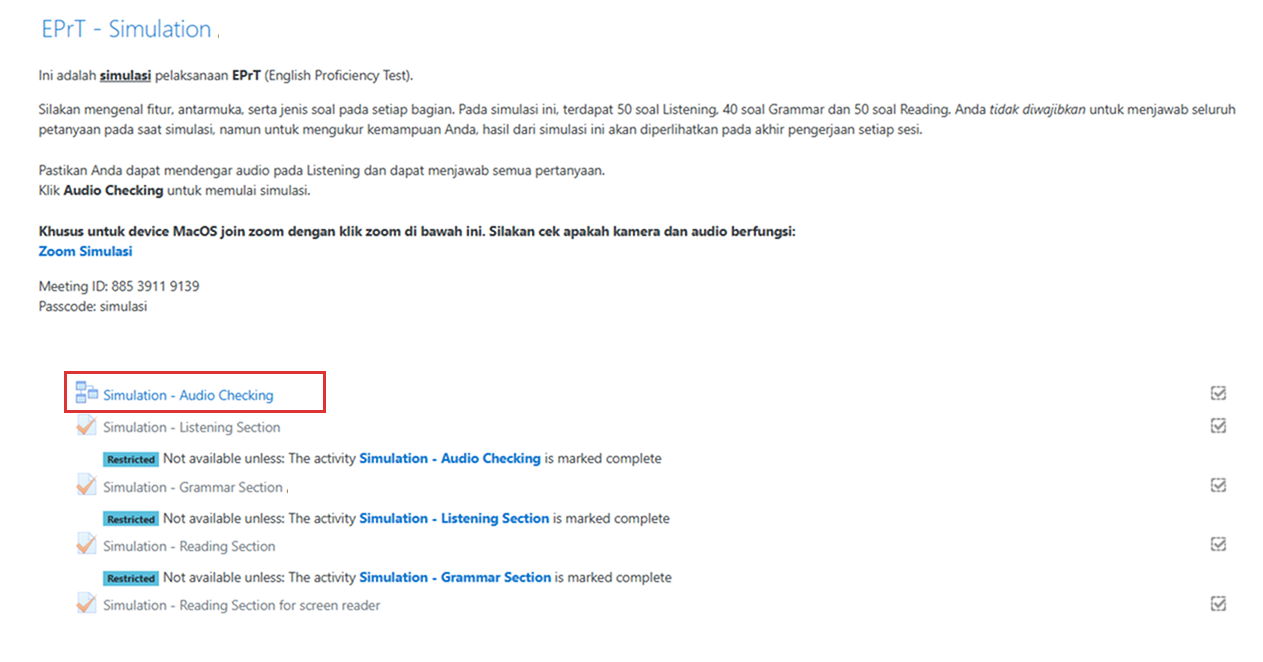
6. You will be redirected to the Simulation page.
7. Make sure your earphones or headphones are plugged in.
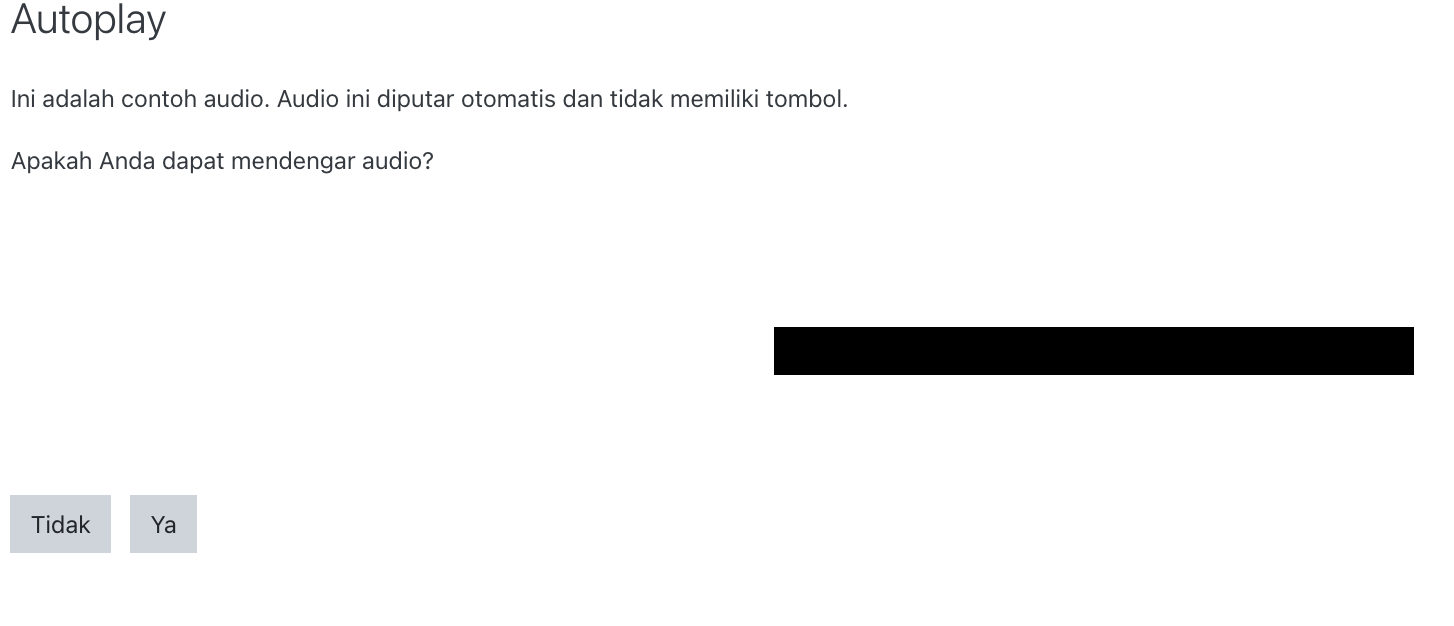
8. Select "Audio Checking." If you hear the audio sample, click “Yes.”
9.Click the "Listening Section" to work on the Listening Section.
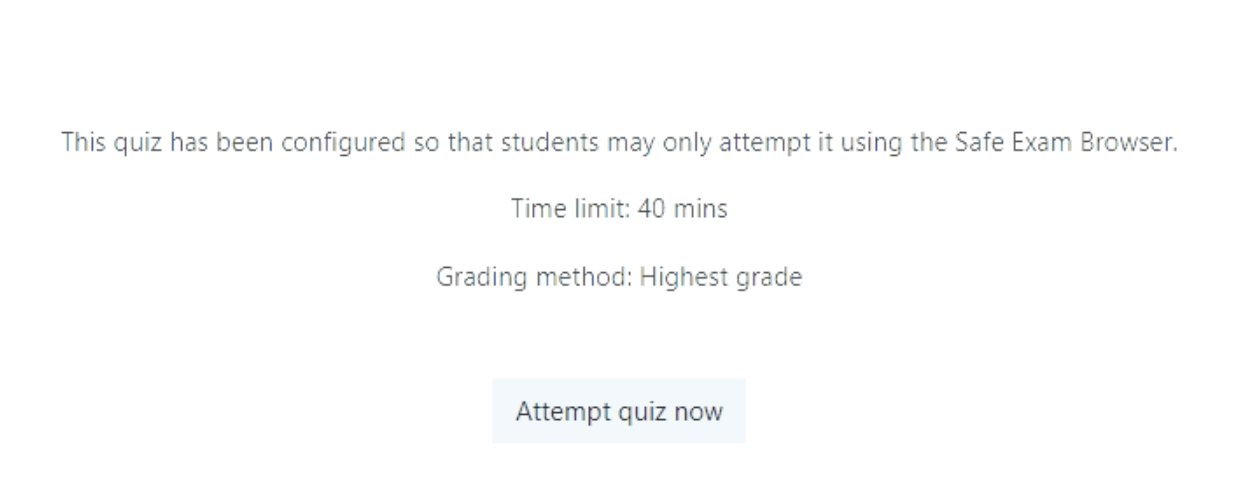
10. Scroll down, then click “Attempt Quiz Now” and answer the questions (the simulation test does not need to be fully completed). When you are done, click “Finish Attempt.”
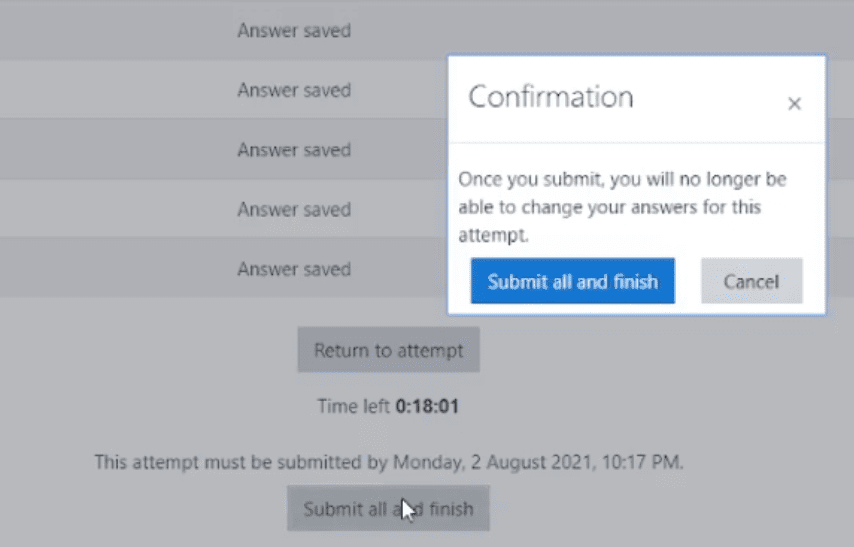
11. After the Listening section is complete, click “Submit All and Finish.”
Submit All and Finish Listening
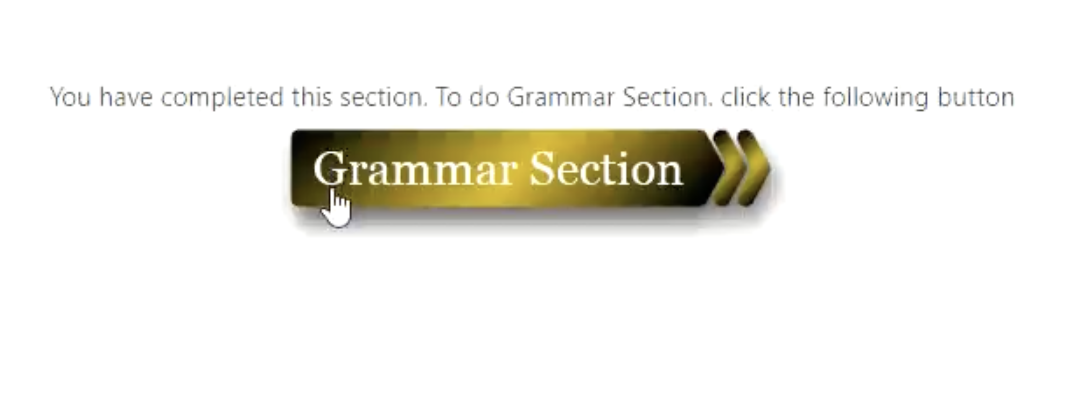
12. Proceed to the Grammar Section, following the same instructions as in the Listening Section.
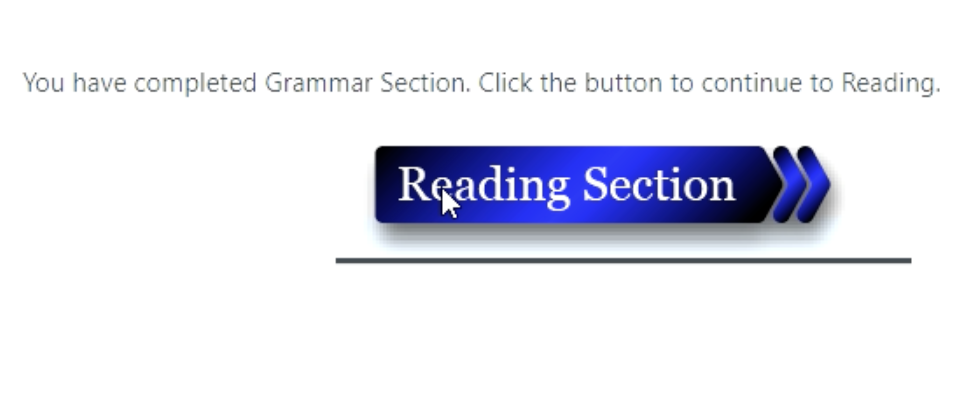
13. After that, go to the Reading Section and answer the questions as before.
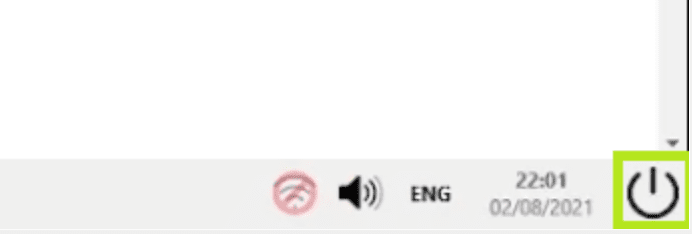
14.After finishing every section, exit the application by clicking the power icon at the bottom right corner.
Tombol Keluar SEB
Show more +
Participants who encounter any issues during the preparation or simulation process can access the “Troubleshooting” guide to resolve them independently.
Participants are required to fill out the form to ensure they are ready before taking the test.
Participants have to complete the form before the test. Participants who do not fill out the checklist form and encounter issues during the test will not be permitted to take the test and will not be eligible to request a reschedule.

Participants who encounter any issues during preparation or simulation should consult Telkom University Language Center (LaC) while bringing the device they will use for the test.

Consultation schedule:
● Monday-Thursday: 09:00-12:00 & 13:00-16:00
● Friday: 09:00-11:00 & 14:00-16:00

Location:
Grha Cacuk Sudarijanto-A Building, A 112
Jl. Telekomunikasi No. 1, Dayeuhkolot, Bandung
Test Administration
If a participant is found to have committed a violation, the participant will be subject to sanctions in accordance with applicable regulations at Telkom University.
A. Before the Test
  1. Make sure you have downloaded and installed the SEB app on the laptop you will use for the test.
  2. Make sure you have met the requirements and prepared for the test.
  3. Make sure you have filled out the Preparation Checklist Form.
  4. Make sure your laptop and smartphone are fully charged.
  5. Prepare a valid form of identification (ID card/school ID card/driver’s license/passport/university ID card). If you do not have any of the identification cards previously listed, you must have your iGracias/My Tel-U account and your personal information page open before entering the testing room.
  6. Eat, drink, and get plenty of rest before taking the test.
  7. Please use the restroom before the test begins, because once the test has started, you will not be allowed to leave the room. If you leave the room before the test is over, your test will be considered finished and submitted.
  8. Make sure you know your EPrT® MABA schedule. Please check the schedule at tel-u.ac.id/jadwal-eprt-maba.
  1. Make sure to take the test as scheduled.
  2. Arrive on time. It is recommended to arrive 15 minutes before your test time to prepare yourself. Participants who arrive late cannot reschedule, and their right to a free EPrT® MABA will be revoked. There will be no make-up test.
  3. Dress neatly and appropriately during the test.
  4. Remove your jacket, mask, and watch before entering the testing room.
  5. Put your belongings in your bag, and leave your bag at the front of the room.
  6. The proctor will verify your identity. Proctors are authorized to refuse a participant’s ID card if the name and photo are not clearly visible.
  7. Participants are only allowed to bring a laptop, identification card (ID card/school ID card/driver’s license/passport/university ID card), wired earphones/headphones, and a smartphone for authentication. Once authentication is complete, make sure your smartphone is in airplane mode.
  8. The proctor will explain the test instructions, rules, and violations.
  9. Open the test platform.
  10. Enter your password and log in to Tel-U Online Learning.
  11. Enter the Enrollment Key provided by the proctor.
  12. Take the EPrT®.
  13. If you encounter any issues, please raise your hand. You will be assisted by the proctoring team.
  14. After completing the Reading Competence (EPrT® last section), fill out the questionnaire by clicking the "Questionnaire" button. After completing the questionnaire, raise your hand to indicate that you have finished the test.
  15. The proctor will check your screen to make sure you have completed the test. Participants are prohibited from logging out of their account before being instructed by the proctor.
  16. Once you have finished the test, you may leave the testing room. Participants must not make any noise that might disturb the other participants.
The following are considered violations in the test:
  1. Opening or using any app other than the test app.
  2. Copying or taking a screenshot of the test questions.
  3. Downloading test questions in any format.
  4. Taking notes during the test.
  5. Making noise that disturbs other participants.
  6. Taking the test for someone else.
  7. Placing items on the table other than a laptop, an ID card, and a smartphone.
  8. Having someone else take the test on the participant's behalf (impersonation or proxy test taker).
  9. Unlocking a smartphone for reasons other than accessing an authentication code.
  10. Receiving assistance, either directly or indirectly, from others while taking the test.
  11. Communicating in any form with other parties besides the proctors, whether directly or indirectly.
  12. Providing answers to other participants.
  13. Leaving the testing room or the Zoom meeting without the proctor's permission.
  14. Eating, drinking, or smoking while the test is in progress.
If such violations are committed, participants will face academic sanctions and the test they are currently taking will be cancelled. Proctors have the authority to stop the test and report any violations for further action.
Test Scores
Test scores will be uploaded to iGracias no later than January 4, 2027. Participants can download the certificate from iGracias. Steps to download the EPrT® certificate:
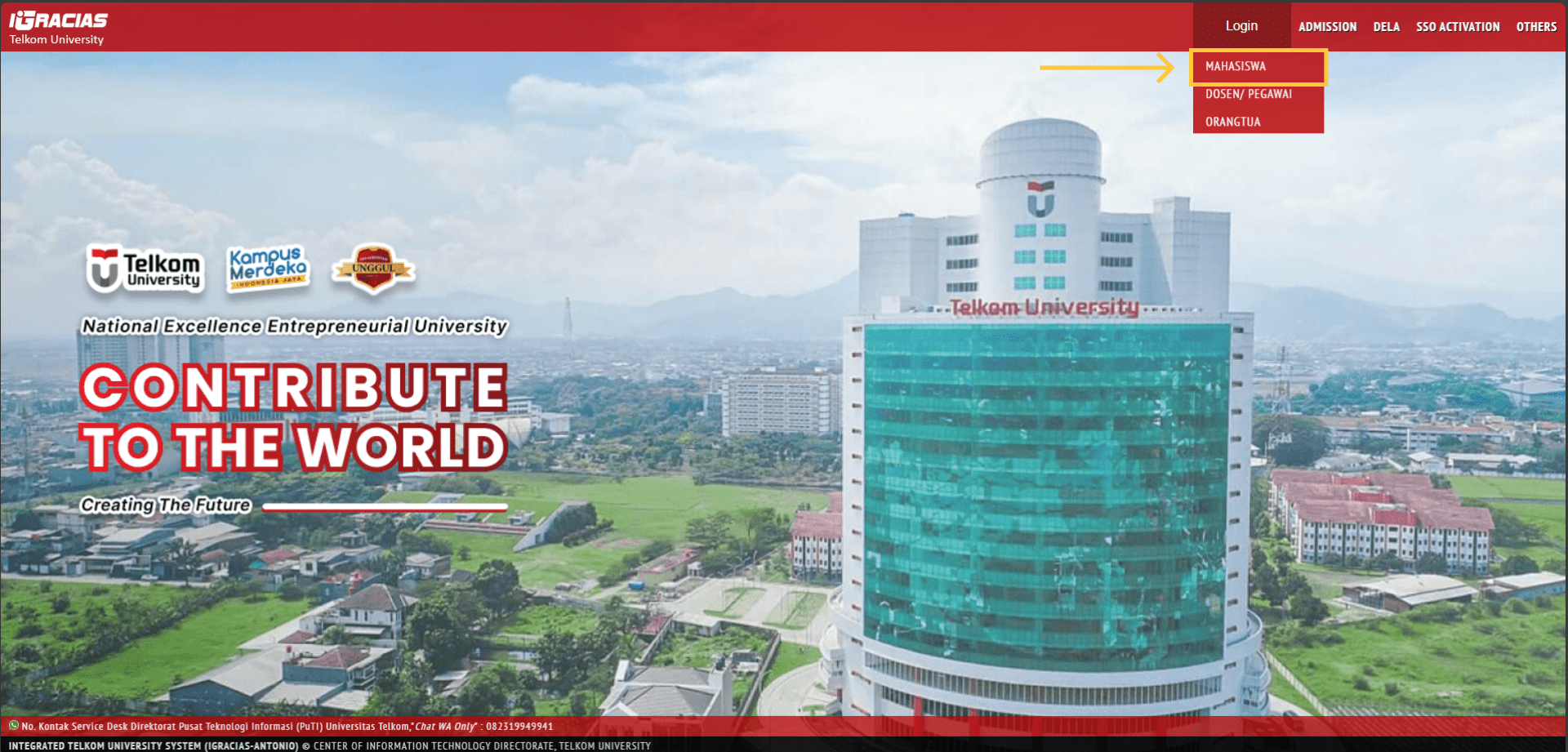
1. Visit iGracias
First, visit iGracias. For Telkom University academic members, click “Login” to sign in. Meanwhile, non-Telkom University academic members can click “Others” option.
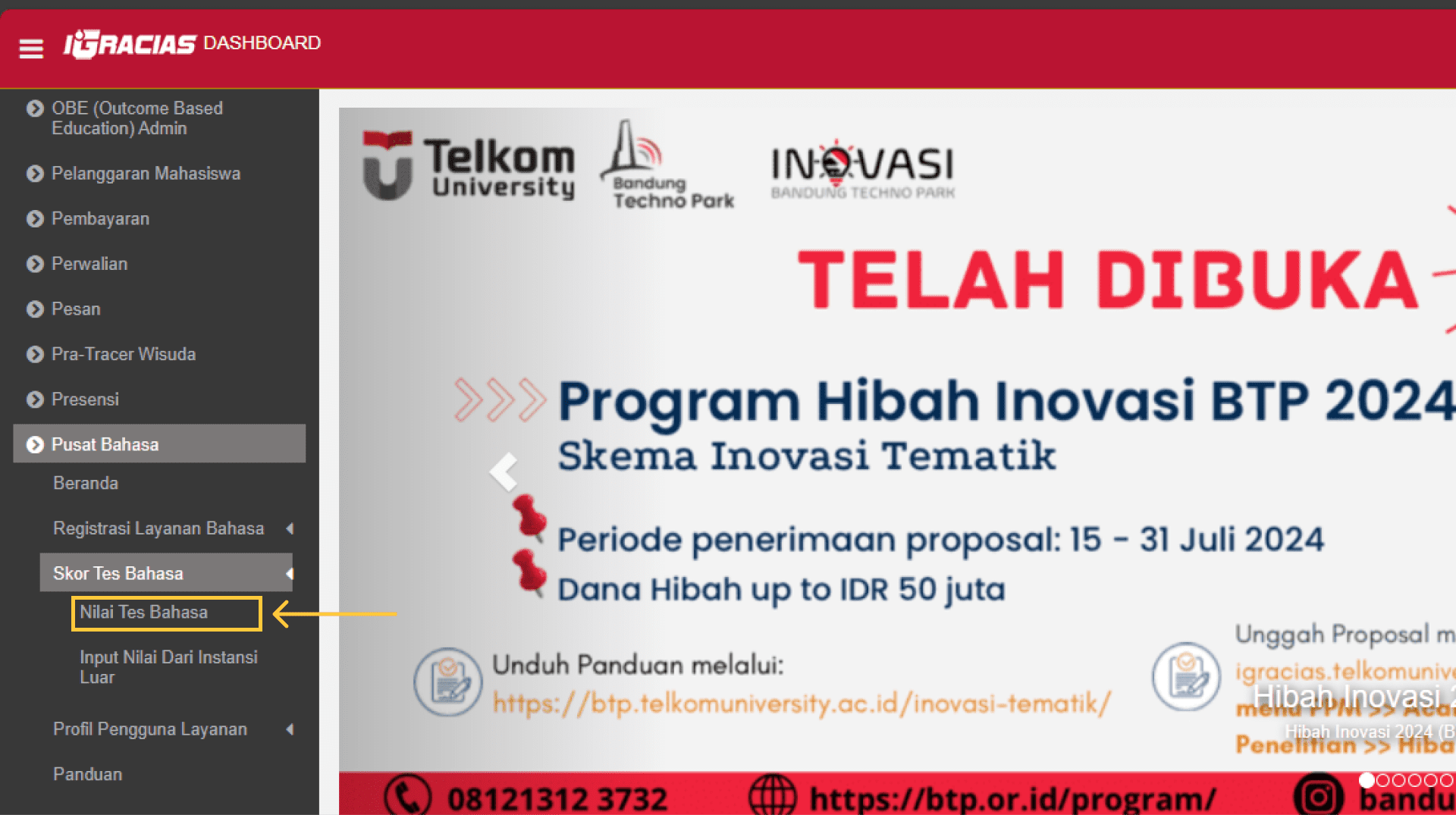
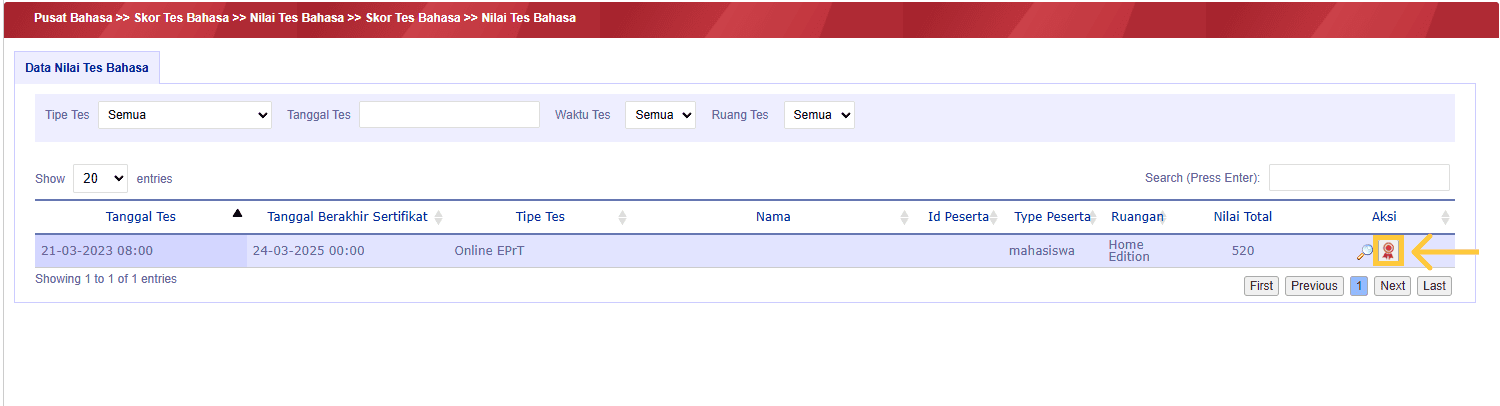
After successfully logging into iGracias, select the menu: Language Center → Language Test Score → Test Score.
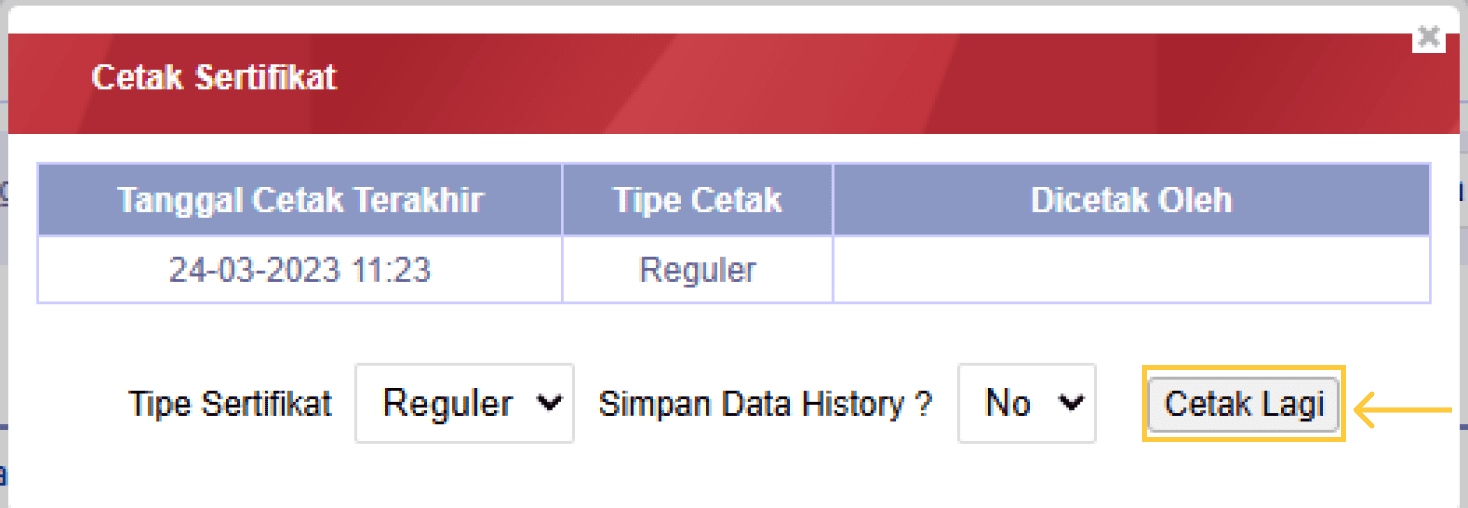
Click the certificate icon in the Action column, then click Print.

EPrT® (English Proficiency Test)

Click the button below to take the EPrT® simulation or actual test.
Make sure you have installed the SEB (Safe Exam Browser) application as required before clicking the button below.

Don’t Miss the Latest Information!
Get up-to-date information on services, schedules, programs, and important announcements directly from LaC!